This article was written by Darlene Antonelli, MA. Darlene Antonelli is a Technology Writer and Editor for wikiHow. Darlene has experience teaching college courses, writing technology-related articles, and working hands-on in the technology field. She earned an MA in Writing from Rowan University in 2012 and wrote her thesis on online communities and the personalities curated in such communities.
This article has been viewed 3,660 times.
This wikiHow will teach you how to watch MP4 video files on any platform. Most computers, phones, and tablets will play MP4 files in their default media players, but sometimes these files bring up an error instead. If you're having difficulty playing an MP4 file, VLC Media Player is a widely-used free alternative capable of opening the majority of MP4 files.
Steps
Method 1
Method 1 of 2:Using a VLC Media Player on a Computer
-
1Double-click the file to open it. If you're using Windows or macOS, your MP4 file should automatically start playing in your default media player (Quicktime for macOS or Windows Media Player for Windows 10). If you are unable to play the file this way, continue with this method to install VLC Media Player.[1]
-
2Open VLC Media Player. If you've already installed the app, you'll find it on your Start Menu or in your Applications folder. VLC is a free media player that supports playback of a wide variety of video formats, including MP4.
- If you don't have VLC, you can download it for free from https://www.videolan.org/vlc/download-windows.html (for Windows) or https://www.videolan.org/vlc/download-macosx.html (for Macs).
-
3Click the Media tab. You'll find this along the top of the program window. A menu will drop-down with more options.
-
4Click Open File. Your file browser will open
-
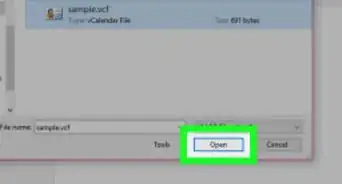
5Navigate to and open the MP4 file. The video should begin to play.
- You can also drag and drop your file into the VLC application window.
-
6Use the control buttons to manage playback. These are the icons at the bottom of your screen that can pause, play, stop, and rewind the video.


Method 2
Method 2 of 2:Using VLC Media Player on a Phone or Tablet
-
1Tap the MP4 file on your phone or tablet. Most phones and tablets should be able to open MP4 files without much issue. If you aren't able to play the file, continue with this method to use VLC Player.
-
2Open VLC. The app icon looks like an orange and white safety cone. If you've already installed it, you'll find it on the home screen, in the app drawer, or by searching. VLC handles the playback of most video formats, including MP4.
- If you don't have VLC, you can download it for free from the Play Store or App Store offered by the developer "Videolabs" or "VideoLAN." The app is called "VLC for Android" in the Google Play Store and "VLC for Mobile" in the App Store.
- If this is your first time using VLC, you'll go through a tutorial before you can begin.
-
3Tap the MP4 video you want to watch. When you open the app, a list of all your videos will appear.
- If you don't see your file, tap the ☰ menu and select Directories. You’ll see folders for your internal storage and folders where video files are typically found. Browse for the file and tap it to start playback.
-
4Use the control buttons to manage playback. These are the icons at the bottom of your screen that can pause, play, stop, and rewind the video.





About This Article

1. Double-click the file to play it; if it doesn't play automatically, continue to the next steps to use VLC.
1. Open VLC Media Player.
2. Click Open File from the Media tab.
3. Use controls to manage playback.