X
This article was written by Jack Lloyd. Jack Lloyd is a Technology Writer and Editor for wikiHow. He has over two years of experience writing and editing technology-related articles. He is technology enthusiast and an English teacher.
The wikiHow Tech Team also followed the article's instructions and verified that they work.
This article has been viewed 892,159 times.
This wikiHow teaches you how to play a video saved in MKV format on your Windows or Mac computer, using either DivX Player or VLC Media Player.
Steps
Method 1
Method 1 of 2:Using DivX Player
Method 1
-
1Open the DivX download page. Go to https://www.divx.com/en/software/divx/.
-
2Click FREE SOFTWARE ↓. This blue button is in the top-right corner of the page. Your DivX setup file will begin downloading.
-
3Wait for DivX to finish downloading. Depending on your browser's settings, you may first have to select a download location or confirm the download before it will start downloading.
-
4Install DivX Player. This process will vary based on your computer's operating system:
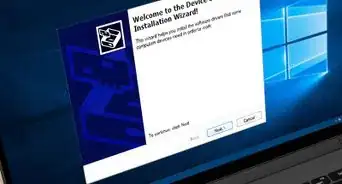
- Windows - Double-click the black and blue DivX setup file, click Yes if prompted, click Next, check the "Accept" box and click Agree, click Next, click Skip, and click Finish when the installation completes.
- Mac - Open the setup file, verify the installation, and then drag the black and blue DivX icon onto the "Applications" folder shortcut.
-
5Open DivX Player. Double-click the DivX icon, which resembles a blue "x" on a black background, to open it.
-
6Click File. It's in the top-left corner of the DivX window (Windows) or in the top-left corner of the screen (Mac).
-
7Click Open Video…. This option is at the top of the File drop-down menu. Doing so opens a window.
-
8Select your MKV video. Click the video that you want to open in DivX. You may first have to click the folder that the MKV video is in (e.g., Desktop) on the left side of the window.
-
9Click Open. It's in the bottom-right corner of the window. Doing so will open your video in DivX Player; it should play like a normal video.


Method 2
Method 2 of 2:Using VLC Media Player
Method 2
-
1Open the VLC Media Player webpage. Go to https://www.videolan.org/.
-
2Click Download VLC. It's a blue button on the right side of the page. Doing so will prompt the VLC setup file to begin downloading to your computer.
- VLC's site will detect your operating system (e.g., Windows or Mac) and provide you with the correct download file.
-
3Wait for the VLC setup file to download. Depending on your browser's settings, you may first have to select a download location or confirm the download before it will start downloading.
-
4Install VLC media player. This process will vary based on your computer's operating system:
- Windows - Click Next in the bottom-right corner of the window until VLC begins installing, then click Finish when the setup completes.
- Mac - Open the setup file, verify the installation, and then drag the VLC icon onto the "Applications" folder shortcut.
-
5Open VLC Media Player. Double-click the orange traffic cone icon to open VLC.
-
6Click Media. This tab is in the upper-left corner of the VLC Media Player window. Doing so prompts a drop-down menu.
- On a Mac, click the File menu item in the top-left corner of the screen instead.
-
7Click Open File…. You'll find this option near the middle of the drop-down menu. Clicking it opens a window in which you can select a file to open in VLC Media Player.
-
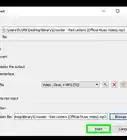
8Select your MKV video. Click the file you want to open in VLC. You may first have to click the folder that the MKV video is in (e.g., Desktop) on the left side of the window.
-
9Click Open. It's in the bottom-right corner of the window. Doing so will open the MKV video in VLC Media Player, where it should begin playing like any other video file.


Community Q&A
-
QuestionFollowed all instructions to open MKV file but nothing work out. Any suggestions?
 ArroganceTop AnswererIf nothing opens your MKV file at all, it may be corrupted. Try downloading it again.