This article was written by Darlene Antonelli, MA. Darlene Antonelli is a Technology Writer and Editor for wikiHow. Darlene has experience teaching college courses, writing technology-related articles, and working hands-on in the technology field. She earned an MA in Writing from Rowan University in 2012 and wrote her thesis on online communities and the personalities curated in such communities.
This article has been viewed 6,903 times.
FLAC files are Free Lossless Audio Codec, which means they are higher quality audio than MP3s. iTunes won’t play FLAC, but this wikiHow will show you how you can play FLAC files on Mac using VLC. You also have the option to convert your FLAC to MP3 if you want to play them in iTunes.
Steps
Method 1
Method 1 of 2:Using VLC Media Player
-
1Go to https://www.videolan.org/vlc/download-macosx.html in a web browser.
- VLC is a free media player program that will play formats like FLAC and MP3.
-
2Click Download VLC. The download should start automatically and your file browser will pop up. You can change the file name and download location before clicking "Save" or "Ok".
- If the download does not initiate, you can click the text "Click here".
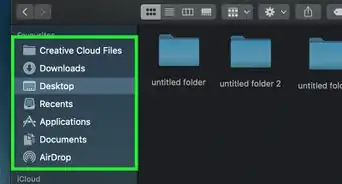
- When the installer is finished downloading, it should automatically open. If not, you can find this file in your file browser, most likely in the “Downloads” folder.
-
3Click I agree. Read any and all agreements before continuing.
-
4Click Install. You will see a progress bar as the installation progresses and finishes.
- The application will download to the location you specified in the installation process.
-
5Open VLC Media Player. You’ll find this in your Applications folder.
-
6Click the Media tab. A menu will drop down.
-
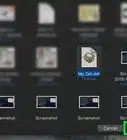
7Click Open File. Your file browser will open and you can navigate to and open your FLAC file.
- You can also drag and drop your file into the VLC application window.
-
8


Method 2
Method 2 of 2:Converting Your FLAC and Playing on iTunes
-
1Go to https://www.zamzar.com/convert/flac-to-mp3/. Zamzar is a free online conversion tool that will make your FLAC file into an MP3.
-
2Click Add Files…. You’ll find this on the left side of your web browser, towards the middle of the page.
- You’ll be automatically progressed to Step 2 once you select your file.
-
3Make sure MP3 is the selected conversion. In Step 2 of the Zamzar website, you can choose which file format you want to convert your file to. Since MP3 is the most commonly used format, you’ll want to pick that.
- You will most likely lose some quality of the FLAC file when you convert to MP3, since MP3 is a compressed file format and generally loses audio information as it compresses.
-
4Click Convert Now. This is Step 3 of the Zamzar conversion process. A new page will load as the file converts. This may take a few minutes to complete.
- Converted files will be saved and available for download for 24 hours.
-
5Click Download. Your file browser will open for you to change the file name and download location.
-
6Open iTunes. You’ll find this in your Dock or Applications folder.
-
7Click the File tab. You’ll find this in the upper left of your screen.
- You can also drag and drop the file into iTunes to add it to your library.
-
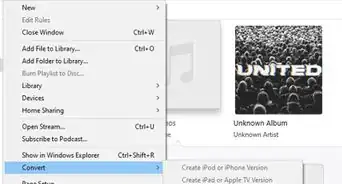
8Click Add to Library. Your file browser will open.
-
9Navigate to and double-click your MP3 file. Your audio file has been added to the iTunes library, so you can listen to it from any device (different computers, iPhones, Samsung phones) as long as you’re signed in to the same account you initially added that audio file to the library from.
- For example, if you added the audio file from your home computer, as long as your iPhone is signed in to your Apple ID, you can listen to that audio file from your phone as well as your computer.
-
10



About This Article

1. Download and install VLC from https://www.videolan.org/vlc/download-macosx.html.
2. Open VLC.
3. Click the Media tab.
4. Click Open file.
5. Navigate to and double-click your FLAC file.
6. Click the play icon to start playback.