X
This article was written by Jack Lloyd. Jack Lloyd is a Technology Writer and Editor for wikiHow. He has over two years of experience writing and editing technology-related articles. He is technology enthusiast and an English teacher.
This article has been viewed 278,768 times.
This wikiHow teaches you how to download a Google Doc document and place it on your flash drive. You can do this on both Windows and Mac computers.
Steps
Part 1
Part 1 of 3:Downloading the Document
Part 1
-
1Plug your flash drive into your computer. It should insert into one of the thin, rectangular slots in your computer's casing.
- If you're using a Windows desktop computer, USB ports are typically in either the front or the back of the computer's CPU box.
- If you're using an iMac, you may find the USB ports on the side of your keyboard or on the back of the iMac's screen.
- Not all Macs have USB ports. If you're using a newer Mac that doesn't come with USB ports, you'll need to purchase a USB-C to USB adapter.
-
2Open the Google Drive website. Go to https://drive.google.com/ in your preferred web browser. If you're already logged into Google Drive on your computer, this will open your Google Drive main page.
- If you aren't yet logged in, click the Go to Google Drive button and then enter your email address and password to log into your Google account.
- If you have more than one Google account logged in, click your Google account's profile image in the upper-right corner of the page, then click the account whose Drive you want to use.
-
3Select the document you want to download. Simply click the document to select it. If the document is inside of a folder, double-click the folder to open the document.
-
4Click ⋮. This button appears in the upper-right side of the Google Drive window once you've selected the document you want to download. A drop-down menu will appear.
-
5Click Download. It's near the bottom of the drop-down menu. This will prompt the document to download onto your computer. Once the download completes, you can proceed to transferring it onto your USB drive.
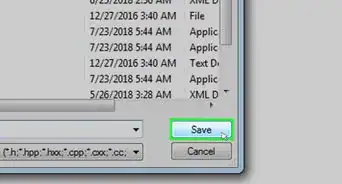
- If prompted to select a save location before the file downloads, select your flash drive from the left side of the Save window and click OK. This will save the Google document directly onto your flash drive, which means you don't have to proceed.


Part 2
Part 2 of 3:Transferring to a Flash Drive on Windows
Part 2
-
1
-
2
-
3Go to the Google document's location. Click one of the folders on the left side of the File Explorer window (e.g., "Downloads") to open it in File Explorer.
- For example, if your Google document downloaded onto the desktop, you would click the "Desktop" folder here.
-
4Select the Google document. Click the document to do so.
-
5Click the Home tab. It's in the upper-left side of the File Explorer window. Doing so prompts a toolbar to appear at the top of the File Explorer window.
-
6Click Move to. This option is in the "Organize" section of the toolbar.
- You can click Copy to right next to this option if you want to keep a copy of the file on your computer when you put the file on your flash drive.
-
7Click Choose location…. It's at the bottom of the Move to drop-down menu. This prompts a pop-up window.
-
8Scroll down and select your flash drive. You'll usually find the flash drive at the bottom of the page.
-
9Click Move. It's at the bottom of the window. Doing so will transfer the Google document from your computer onto your flash drive.
- You can check that the file is on the flash drive by clicking the flash drive's name on the left side of the File Explorer window to view its contents.


Part 3
Part 3 of 3:Transferring to a Flash Drive on Mac
Part 3
-
1Open the Finder. Double-click the blue, face-shaped app in your Mac's Dock.
-
2Go to the Google document's location. You'll see a list of folders on the left side of the Finder window; click the folder to which the Google document was downloaded.
- For example, if the Google document downloaded to the "Downloads" folder, you would click Downloads here.
- You can also click All My Files in the top-left side of the Finder and then search for your Google document.
-
3Select the Google document. Click the document to select it.
-
4Click Edit. This menu item is in the top-left side of the Mac's screen.
-
5Click Copy. It's near the top of the Edit drop-down menu.
-
6Click your flash drive's name. You'll find this in the lower-left side of the Finder window beneath the "DEVICES" heading.
-
7Click Edit again, then click Past Item. This option is near the top of the Edit drop-down menu. Clicking it puts the Google document on your flash drive.
- You should see the Google document appear on the flash drive.


Community Q&A
-
QuestionHow do I find the name of the flash drive?
 Community AnswerIt would usually be listed by the brand of the flash drive you have, unless you name it something else.
 -
QuestionWhen I save, the order of the words get messed up and go all over the place. What's wrong?Community AnswerIt might have something to do with choosing the wrong format when saving it to the flash drive.
-
QuestionHow do I check the file size on a Google document before saving it to a USB drive?Community AnswerRight-click on the document, then click on "properties." It will show the file size of the document.
-
QuestionHow do you know which file the flash drive is?
 Community AnswerIf you know what the name of the flash drive is, you can find that on "computer." Double click on the name, and you can access its files.
 -
QuestionMy Google Doc is on my USB as a PDF. How do I make it editable?
 Community AnswerYou can't make PDFs editable. You need to choose another format to do that.
Warnings
- You may have to delete some files to make room for your Google document if your flash drive is nearly full.Thanks!