This article was co-authored by wikiHow Staff. Our trained team of editors and researchers validate articles for accuracy and comprehensiveness. wikiHow's Content Management Team carefully monitors the work from our editorial staff to ensure that each article is backed by trusted research and meets our high quality standards.
This article has been viewed 47,878 times.
Learn more...
This wikiHow teaches you how to attach stickers to moving objects in a Snapchat video.
Steps
-
1Open your Snapchat app. This is an app with a white ghost on a yellow background.
-
2Create a video. This is done by pressing and holding the large circular button at the bottom of the screen that takes pictures.
-
3Tap the sticker button. It’s located at the top of the screen and looks like a post-it note.
- You can also create your own stickers from a snap.
-
4Tap on a sticker. You can search a sticker with the search bar or by tapping the icons at the bottom of the screen.
-
5Use two fingers to position and resize your sticker. Rotating two fingers will angle the sticker and spreading them will enlarge it.
- If you don’t want to make your sticker move, you can drag it to the location you want it at this point and save or send it.
-
6Press and hold the sticker with one finger. This will pause the video so you can more easily situate your sticker.
-
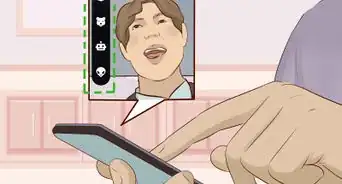
7Move it to the desired object. If you place the sticker on an object that is moving, it will move with it.
- You can also put the sticker on a stationary object in the video. This will cause it to remain with that object as the video rolls.
-
8Release the sticker. It will be pinned to your video.
- To send the video to your friends, you can press the white arrow in a blue circle in the bottom right corner of your screen. You can also save it by tapping the downward arrow over a line at the bottom of your screen.
- You may add more stickers if desired. You can also add text by tapping the “T” by the sticker button or tap the pencil icon to draw.






About This Article

1. Open Snapchat.
2. Hold the camera button to create a video.
3. Tap the button shaped like a post-it note.
4. Tap on a sticker.
5. Use two fingers to position and resize your sticker.
6. Press and hold the sticker.
7. Move it to the desired object or spot.
8. Release the sticker.