wikiHow is a “wiki,” similar to Wikipedia, which means that many of our articles are co-written by multiple authors. To create this article, volunteer authors worked to edit and improve it over time.
The wikiHow Tech Team also followed the article's instructions and verified that they work.
This article has been viewed 21,995 times.
Learn more...
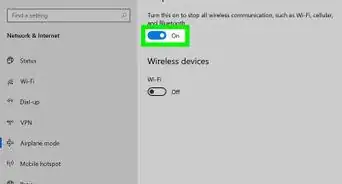
Airplane Mode is a feature that allows you to disable all wireless communication on a device.[1] It can be useful if you are using a laptop on an airplane, but it can cause issues in other situations. While you can disable it in settings, it can be turned back on accidentally by users, or a bug may enable it. But, if you are an administrator, then it can be permanently disabled so that it cannot be turned back on. This article will show you how.
The steps in this article work on Windows 11 as well.
Steps
-
1Press ⊞ Win+R.
-
2Type cmd into the box that comes up.Advertisement
-
3Press Ctrl+⇧ Shift+↵ Enter at the same time.
-
4Click Yes on the UAC dialog that comes up.
- If you do not have administrator permissions, then you cannot do this.
-
5Type the following command inside of the Command Prompt window: SC CONFIG RmSvc START= DISABLED
-
6Press ↵ Enter. The command prompt should then report that it was successful.
-
7Advertisement


Community Q&A
-
QuestionIt says access denied, how do I fix that?
 R2_d2000Top AnswererYou need to make sure that you are running Command Prompt as an administrator. To do that, make sure you press Ctrl + Shift + Enter after you type it into the run box. You can also type "cmd" into the search bar on start, and then right click command prompt and click "Run as administrator".
 -
QuestionWill this completely turn off the Wi-Fi or the internet? I need to disable this function all together.R2_d2000Top AnswererNo, this will do the opposite of what you want to do. To disable Wi-Fi, follow the steps in How to Enable Airplane Mode in Windows 10. To disconnect a wired connection, then pull the Ethernet cable out of the back of the computer.
Warnings
- On Windows 11, the Wi-Fi icon will disappear from the taskbar if you do this. You will still be able to connect to a Wi-Fi network though.Thanks!
Things You'll Need
- Windows 10 or 11 Computer
- Administrator permissions

-Step-17.webp)












-Step-17.webp)










































