This article was written by Darlene Antonelli, MA. Darlene Antonelli is a Technology Writer and Editor for wikiHow. Darlene has experience teaching college courses, writing technology-related articles, and working hands-on in the technology field. She earned an MA in Writing from Rowan University in 2012 and wrote her thesis on online communities and the personalities curated in such communities.
This article has been viewed 3,858 times.
This wikiHow teaches you how to pause a Twitch stream on iPhone or iPad. While you aren't currently able to pause a live stream through the Twitch app, you can pause recorded streams. You can also use a browser on your phone or tablet to access the Twitch website and pause a live stream from there.
Steps
Method 1
Method 1 of 2:Pausing a Live Stream on a Browser
-
1Go to https://twitch.tv in a web browser. Using this Method, your paused live stream will pick up where the live stream is, which means you’ll miss everything during the pause period. However, you will be able to see the comments during the paused period.[1] .
- Log in if prompted.
- A list of your followed categories will appear.
-
2Tap a category to select it.Advertisement
-
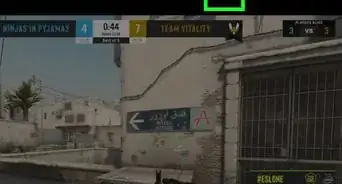
3Tap a live video to select it. You’ll see that each live video has a red dot on it in the upper left corner as well as the word Live. The stream will load and start playing.
-
4Advertisement


Method 2
Method 2 of 2:Pausing Recorded Streams
-
1Open Twitch. This app icon looks like a white chat bubble on a purple background. You can generally find this on your home screen.
- Log in if prompted.
-
2Tap Browse. You’ll find this in the lower right of your screen. A list of your followed categories will appear.
-
3Tap a category to select it.
-
4Tap the Live Channels tab. You’ll find this in the left of your screen and a menu will drop down.
-
5Tap Videos. This will load a page of recorded broadcasts.
-
6Tap a video to select it. The video will load and start playing.
-
7Tap the video again. Options will appear on the screen over the video.
-
8Advertisement




About This Article

1. Open Twitch.
2. Tap Browse.
3. Tap a category to select it.
4. Tap Live Stream.
5. Tap Videos from the drop-down.
6. Tap a video to select it.
7. Tap the Pause icon.