This article was co-authored by wikiHow Staff. Our trained team of editors and researchers validate articles for accuracy and comprehensiveness. wikiHow's Content Management Team carefully monitors the work from our editorial staff to ensure that each article is backed by trusted research and meets our high quality standards.
This article has been viewed 10,566 times.
Learn more...
This wikiHow shows you how to pause a stream on Twitch when you're using a computer. Though you can pause any stream you're watching, it's not possible to pause your own live broadcast. If you want to take a break from your own streaming, you'll just have to stop the stream.
Steps
Method 1
Method 1 of 2:Pausing Twitch as a Viewer
-
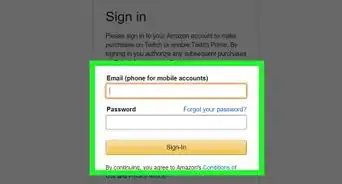
1Visit https://www.twitch.tv. If you're not already signed into your Twitch account, sign in now.
-
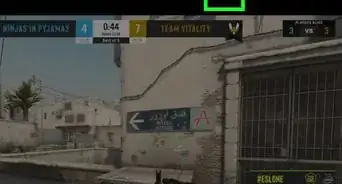
2Click on a random live stream. You will know the stream is live if you see a red circle in the corner titled “Live”.
-
3Hover the mouse over the video. A toolbar will pop up at the bottom.
-
4


Method 2
Method 2 of 2:Stopping Your Own Stream
-
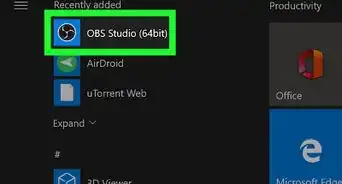
1Start streaming on Twitch. Unfortunately, there's no way to pause your own broadcast on Twitch. You can, however, stop the stream in OBS and restart it again. To start streaming, launch OBS, choose your streaming settings, and click Start Streaming.
- If you don't know how to go live on Twitch, see this wikiHow to get started.
- If you don't want to stop your stream but need a break, try just making a sign that says "I'll be right back" and propping it in front of your camera.
-
2Click Stop Streaming to end the stream. It's at the bottom-right corner of the OBS app. The button is the same you clicked to start the stream, though the text is different.




About This Article

1. Visit https://www.twitch.tv/.
2. Click on a livestream video.
3. Click on the Play button in left corner of the video.
4. Set up a playlist by clicking Add Song.
5. Click on Open From My Computer.