X
This article was co-authored by wikiHow Staff. Our trained team of editors and researchers validate articles for accuracy and comprehensiveness. wikiHow's Content Management Team carefully monitors the work from our editorial staff to ensure that each article is backed by trusted research and meets our high quality standards.
This article has been viewed 33,588 times.
Learn more...
This wikiHow teaches you how to paste in a Facebook Messenger conversation.
Steps
Method 1
Method 1 of 2:Pasting in Facebook Messenger App for iPhone/iPad/Android
Method 1
-
1Long-press the area where the text you want to paste is located. The highlighter will appear.
-
2Drag over the text you want to paste. It will be highlighted. A set of options will appear above it.Advertisement
-
3Tap Copy. The text has been copied to your clipboard.
-
4Open the Messenger app. It's the app with a blue and white chat bubble.
-
5Tap Home. It's the house icon.
-
6Choose a recipient. You can tap on an existing conversation, or tap the New Message icon to start a new conversation.
-
7Long-press the text box. The option to Paste will appear.
-
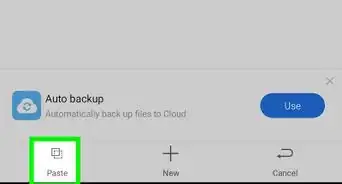
8Tap Paste. Your selected text has now been pasted to your chat box.
-
9Tap Send. Your pasted text has now been sent as a message to your selected recipient.Advertisement


Method 2
Method 2 of 2:Pasting in Facebook Messenger on Desktop
Method 2
-
1Click and drag over the text you want to paste. It will be highlighted.
- Alternatively, if you want to paste a photo in Messenger, hover over the photo with your cursor.
-
2Ctrl + Click on the highlighted text or photo. A menu of options will appear.
- If you're using a Windows computer, right-click on the content instead.
-
3Click Copy.
-
4Go to Facebook Messenger
-
5Choose a recipient. You can click on an existing conversation, or click the New Message icon to start a new conversation.
-
6Ctrl + Click on the chat box. A set of options will appear.
- If you are using a Windows computer, right-click on the chat box instead.
-
7Click Paste. Your selected content has now been pasted into the chat box on Messenger.
-
8Click Send. Your pasted content has now been sent as a message to the selected recipient.Advertisement


Warnings
- When pasting a photo to Messenger on Desktop, the photo will be sent to the recipient automatically, without giving you the option to press send.Thanks!
Advertisement
About This Article

wikiHow Staff
wikiHow Staff Writer
This article was co-authored by wikiHow Staff. Our trained team of editors and researchers validate articles for accuracy and comprehensiveness. wikiHow's Content Management Team carefully monitors the work from our editorial staff to ensure that each article is backed by trusted research and meets our high quality standards. This article has been viewed 33,588 times.
How helpful is this?
Co-authors: 4
Updated: March 5, 2017
Views: 33,588
Categories: Facebook Messenger
Advertisement