This article was co-authored by Sam Browning. Sam Browning is an Emerging Technology Writer for wikiHow. Sam has not only written countless step-by-step articles for social media and tech, but he also has experience writing instructional articles on technology for Davidson College and reviewing video games. He is currently pursuing a degree in English with a minor in Digital Studies at Davidson.
Digital workspaces can get disorganized in a matter of minutes. Your desktop becomes a chaotic heap of files, every app you use opens another window to keep track of, and you have enough open tabs in one browser window to make your computer sound like a jet engine. Luckily, there are a variety of organizational tools to help restore order to your computational world! This wikiHow article will teach you both how to use an organizational custom wallpaper and how to use different wallpapers on virtual desktops and external displays.
Steps
Method 1
Method 1 of 5:Using Custom Wallpapers as an Organizational Tool
-
1Look up organizational wallpapers. Using your search engine of choice, search for organizational desktop backgrounds.
-
2Sort your results by images. To filter your results, find and click a button called something like Images. This will only show you image files you can use for your desktop background.Advertisement
-
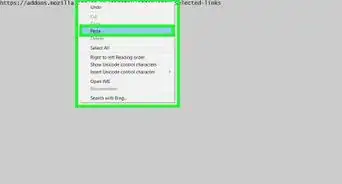
3Download the wallpaper you would like to use. To download an image, you can click and drag it to your desktop. You can also download it by right-clicking it, then clicking something like Download Linked File.
-
4Right-click the image and set it as your background. On Mac, click the Set Desktop Picture button. On Windows, click the Set as desktop background button.
- To adjust the sizing of your wallpaper on Mac, use the dropdown menu in the Desktop & Screen Saver category of System Preferences.
- To adjust the sizing of your wallpaper on Windows, use the dropdown menu in the Background tab of the Personalization category in Settings.
-
5Move files and folders into the desired category. Click and drag the items to be organized into their corresponding box, and your desktop is now organized!
- If you are struggling to fit files into one of the allotted spaces, try putting them in folders for sub-organization and space efficiency.
Advertisement


Method 2
Method 2 of 5:Using Different Wallpapers on Virtual Desktops (Mac)
-
1Open Mission Control. To open Mission Control using your trackpad, swipe up from the bottom of the trackpad with three fingers. Otherwise, you can press Control + ↑ Up.[1]
-
2Add the desired number of desktops. To add a desktop, click the plus sign in the upper right of the screen.
- Extra desktops can be deleted by hovering your mouse over the grey bar at the top of the screen, then hovering over the desktop you would like to delete, then clicking the X that appears at the top left of the desktop preview.
-
3Go to a new desktop. Access your new desktop screen by either clicking it in the top menu bar in Mission Control or swiping three fingers from right to left on your trackpad.
-
4Select a picture. Find the file of the picture you would like to use as your new background.
- If the photo is online or in the Photos app, save a copy of it to your desktop by simply dragging and dropping it out of the app.
-
5Right-click the picture and choose Set Desktop Picture. This will change the background of only the desktop you are currently on to the picture you have selected.
-
6Open System Preferences. System Preferences can be opened through Spotlight Search. Simply click the magnifying glass in the top right of your screen, type in “System Preferences”, and hit ↵ Enter.
-
7Click Desktop & Screen Saver. This will open a menu with a variety of different settings for your desktop and your screen saver.
-
8Adjust the formatting of your picture. Use the dropdown menu next to the preview of your desktop to change the display style of your image.
- If your background does not completely fill the screen, you can click the small box filled with a color to the right of the dropdown menu and select the color for the blank space from a color picker.
-
9Repeat steps 3 through 8 for each desktop. Once you have done this, your background should be different on each desktop!Advertisement


Method 3
Method 3 of 5:Using Different Wallpapers on External Monitors (Mac)
-
1Move the background image for the external monitor to the desktop of that monitor. Dragging and dropping the photo onto the desktop of the monitor will make it easier to change the background in later steps.
- If the photo is online or in the Photos app, save a copy of it to your desktop by simply dragging and dropping it out of the app.
-
2Open System Preferences. System Preferences can be opened through Spotlight Search. Simply click the magnifying glass in the top right of your screen, type in “System Preferences”, and hit ↵ Enter.
-
3Click Desktop & Screen Saver. This will create a window on your external monitor with the heading “Secondary Desktop”.
-
4Drag and drop your image into the preview of your current desktop background. When you are holding the image over the desktop preview in the top left of the “Secondary Desktop” window, a small green plus icon should appear under your mouse.
-
5Adjust the formatting of your picture. In the “Secondary Desktop” window on your monitor, use the dropdown menu next to the preview of your desktop to change the display style of your image.
- If your background does not completely fill the screen, you can click the small box filled with a color to the right of the dropdown menu and select the color for the blank space from a color picker.
-
6Repeat these steps for each monitor. Once you have done this for each display, you should be good to go!Advertisement


Method 4
Method 4 of 5:Using Different Wallpapers on Virtual Desktops (Windows)
-
1Open Task View. Task View can be opened by pressing ⊞ Win and Tab ↹, or by clicking the icon with overlapping rectangles on the task bar.[2]
-
2Click New desktop. Create as many virtual desktops as you would like to help keep yourself organized.
-
3Select your background pictures. Find the file of each picture you would like to use as your new background.
- If the photos are online, save a copy of each to your desktop by simply dragging and dropping them out of the browser.
-
4Right-click an image and click Set as desktop background. This will set the image as the background for one of your desktops. This step will not set the images as different backgrounds on your different desktops, but it will make it much easier to do so later on.[3]
-
5Repeat step 4 for each image you will use. Again, do not worry when the background only changes on one desktop! You will be able to easily change each background with the following steps.
-
6Right-click on an empty part of your desktop and select Personalize. The window that appears should say “Background” at the top and display a picture of your current desktop background.
-
7Right-click a background image under the “Choose your picture” heading. Since you set each individual image as your desktop background in steps 1 and 2, they should show up as options in this window.
-
8Choose the Set for desktop button that corresponds to the desired desktop. This will allow you to set different backgrounds for virtual desktops as well as for multiple monitors.
- To find the right desktop, you can use trial and error by setting the image as the background for each option.
- Alternatively, you can determine the corresponding number for each desktop in Task View.
-
9Repeat steps 7 and 8 for each desktop. You should now have separate backgrounds on each of your desktops!Advertisement


Method 5
Method 5 of 5:Using Different Wallpapers on External Monitors (Windows)
-
1Select your background pictures. Find the file of each picture you would like to use as your new background.
- If the photos are online, save a copy of each to your desktop by simply dragging and dropping them out of the browser.
-
2Right-click an image and click Set as desktop background. This will set the image as the background for one of your displays. This step will not set the images as different backgrounds on your different monitors, but it will make it much easier to do so later on.
-
3Repeat step 2 for each image you will use. Again, do not worry when the background only changes on one monitor! You will be able to easily change each background with the following steps.
-
4Right-click on an empty part of your desktop and select Personalize. The window that appears should say “Background” at the top and display a picture of your current desktop background.
-
5Right-click a background image under the “Choose your picture” heading. Since you set each individual image as your desktop background in steps 1 and 2, they should show up as options in this window.
-
6Choose the Set for monitor (number) button that corresponds to the desired display. This will allow you to set different backgrounds for multiple monitors.
- To find the right monitor, you can use trial and error by setting the image as the background for each option.
- Alternatively, you can determine the corresponding number for each display in Settings > System > Display.
-
7Repeat steps 5 and 6 for each display background. You should now have separate backgrounds on each of your monitors!Advertisement






References
About This Article