This article was co-authored by wikiHow Staff. Our trained team of editors and researchers validate articles for accuracy and comprehensiveness. wikiHow's Content Management Team carefully monitors the work from our editorial staff to ensure that each article is backed by trusted research and meets our high quality standards.
This article has been viewed 1,569 times.
Learn more...
This wikiHow shows you how to open any Video_ts files, which are a vital component for playing any DVD, on a personal computer. Multimedia players like VLC Media Player offer support for Video_ts files and are available for free, making them ideal for users looking for a quick and relatively easy way to open a variety of files.
Steps
Part 1
Part 1 of 2:Installing VLC Media Player
-
1Open your web browser.
-
2Navigate to https://www.videolan.org/. This will take you to the VLC website.Advertisement
-
3Select the version of VLC Media Player compatible with your OS. On the main page, there is a blue Download VLC button with an arrow next to it. Click the arrow to pull up a drop-down menu of different versions of VLC Media Player.
-
4Click Download VLC. Once you’ve selected the version of VLC compatible with your OS, click the blue button to download the VLC installer onto your computer.
-
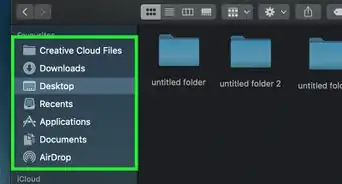
5Navigate to the VLC installer. Usually, this appears in the Downloads folder on your computer, which can be accessed through your computer’s file viewer (File Explorer for Windows; Finder for Mac).
-
6Double click the VLC installer file. This will open the installation wizard. Follow the on-screen instructions to complete the installation process and access VLC Media Player.Advertisement


Part 2
Part 2 of 2:Opening a Video_ts file in VLC Media Player
-
1Open VLC Media Player. This has an orange traffic-cone icon and can be accessed from your homescreen.
-
2Click Media. This is in the top-left corner of the main menu in VLC Media Player.
-
3Select Open Folder. Since Video_ts files are usually grouped into folders, you’ll need to open it as a folder in VLC Media Player.
-
4Navigate to the Video_ts file you want to open. Simply open your computer’s file navigator and select the folder with the Video_ts file you want to view.
-
5Click Select Folder. This will open the Video_ts file in VLC Media Player, allowing you to access its contents without any compatibility issues.Advertisement




About This Article

1. Install VLC Media Player on your computer.
2. Open VLC Media Player.
3. Click Media.
4. Select Open Folder.
5. Navigate to your Video_ts file.
6. Click Select Folder.