This article was co-authored by wikiHow Staff. Our trained team of editors and researchers validate articles for accuracy and comprehensiveness. wikiHow's Content Management Team carefully monitors the work from our editorial staff to ensure that each article is backed by trusted research and meets our high quality standards.
The wikiHow Tech Team also followed the article's instructions and verified that they work.
This article has been viewed 6,860 times.
Learn more...
This wikiHow teaches you how to open and view the contents of a VSDX (Visio) file, using Android. VSDX files usually contain drawings and technical illustrations on a free-form flowchart canvas. You can open a VSDX file in a dedicated mobile app, such as Lucidchart, or convert it to PDF and view the PDF document.
Steps
Method 1
Method 1 of 2:Using Lucidchart
-
1Download and install the Lucidchart app on your Android. You can search "Lucidchart" on the Google Play Store, and install the app for free.
- If you're not sure how to download an app from the Play Store, make sure to check out this article for detailed instructions.
- To view the app in your internet browser, go to https://play.google.com/store/apps/details?id=com.lucidchart.android.chart.
-
2Open the Lucidchart app on your Android. The Lucidchart icon looks like a white curve and two dots on an orange background. You can find it on your apps menu.
-
3Tap LOG IN at the bottom. This will open the login form on a new page.
- You can log in to Lucidchart with your Google account.
- Alternatively, you can tap SIGN UP here, and create a new, dedicated Lucidchart account.
-
4Tap the Google button. This button is located below the email field on the login form. It will open a list of your saved Google accounts in a pop-up window.
-
5Select the account you want to use. You can use the same Google account as the one you're using for the Play Store, or select a different account here.
-
6Tap Allow. This is a blue button on the bottom-right corner of your screen. It will authorize the use of your Google account, and open Lucidchart's "Documents" page.
-
7Tap the orange + button on the bottom-right. This is a white "+" sign on an orange button. It will expand your options.
-
8Tap Import Visio from the options. This option looks like a downward arrow icon on a box. It will open a new page, and prompt you to select the VSDX file you want to view.
-
9Find and tap the VSDX file you want to view. This will import the selected VSDX file, and open it in Lucidchart. You can open and view it from the ALL tab here anytime.


Method 2
Method 2 of 2:Using Visio To PDF
-
1Download and install the Visio To PDF app on your Android. You can search "Visio To PDF" on the Google Play Store, and tap INSTALL to get it for free.
- If you're not sure how to download from the Play Store, make sure to check out this article for detailed instructions.
- To view the app in your internet browser, go to https://play.google.com/store/apps/details?id=com.spiralaxis.Visio2PDF.
-
2Open the Visio To PDF app on your Android. The Visio To PDF icon looks like two gray "V"s above a red "PDF" on a white background. You can find it on your apps menu.
-
3Tap ALLOW in the pop-up window. When you first open the app, you'll be prompted to allow it access to your media and files. Tap ALLOW to proceed.
-
4Tap the ADD FILE + button. This a red-on-white button at the bottom of the app's welcome page. It will prompt you to select the VSDX file you want to view.
-
5Find and select your VSDX file. Find the VSDX file you want to view in your folders, and tap on its name to add it to the converter.
-
6Tap the CONVERT button next to your file. When your file is added, you'll see a red CONVERT button next to it on the file list in the app. Tap this button to start your file conversion.
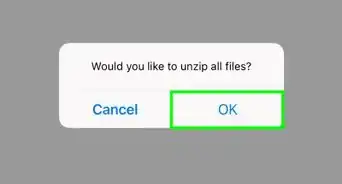
- If you're prompted to confirm, tap OK.
- When your file conversion is finished, you'll see a new PDF file on the file list with the same name as your VSDX file.
-
7Tap the downward arrow icon next to the converted PDF. This will download the PDF file to your Android's Downloads folder. You can open and view it in your Downloads folder the same way you view any PDF document.
- You can check out this article for more information about viewing PDF files on Android.


About This Article

1. Download "Lucidchart" from the Play Store.
2. Open Lucidchart.
3. Tap LOG IN.
4. Tap Google, select an account.
5. Tap Allow.
6. Tap the "+" icon on the bottom-right.
7. Tap Import Visio.
8. Find and tap your Vsdx file.