X
This article was written by Jack Lloyd. Jack Lloyd is a Technology Writer and Editor for wikiHow. He has over two years of experience writing and editing technology-related articles. He is technology enthusiast and an English teacher.
This article has been viewed 56,992 times.
Notepad is an incredibly easy-to-use text editor bundled with the Microsoft Windows operating system. You can find and open Notepad from within the Microsoft Windows Start menu, or you can create a new text file right on your desktop.
Steps
Method 1
Method 1 of 3:Opening Notepad with Search
Method 1


Method 2
Method 2 of 3:Manually Accessing Notepad
Method 2
-
1Click ⊞ Win.
-
2Scroll down to "Windows Accessories".[1]
- On Windows 10, you won't be able to find Notepad using this method. You can, however, refer to method one to find it.
-
3Click the "Windows Accessories" folder.
-
4Click "Notepad". This will open Notepad!Advertisement


Method 3
Method 3 of 3:Creating a New Text Document
Method 3


Community Q&A
-
QuestionHow do I save a Notepad file to my desktop?
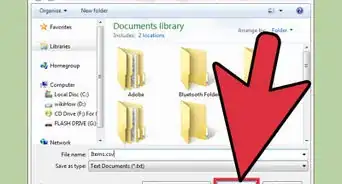
 Community AnswerClick File and then Save As in the top left corner. You'll be able to save your Notepad file anywhere on your computer.
 -
QuestionI do not understand yet now how to open the notepad from start menu. What do I do?
 Community AnswerFrom your desktop, click on a free space with your right mouse button. A menu should appear. Just select, "New," and click, "Text Document." This should create a file at your desktop you can rename. Open the file to open Notepad and edit the created file with it.
Warnings
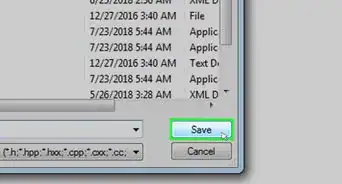
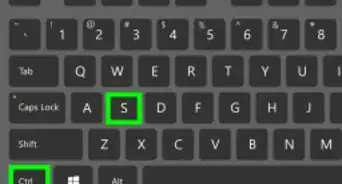
- Unlike Microsoft Word, Notepad does not save your work periodically; to save your work, make sure you click Save in the File menu (or hold down Ctrl+S).Thanks!
Advertisement






References
About This Article
Advertisement