This article was written by Nicole Levine, MFA. Nicole Levine is a Technology Writer and Editor for wikiHow. She has more than 20 years of experience creating technical documentation and leading support teams at major web hosting and software companies. Nicole also holds an MFA in Creative Writing from Portland State University and teaches composition, fiction-writing, and zine-making at various institutions.
This article has been viewed 3,072 times.
When you download an archive of your Google data from Google Takeout, your file is saved as either a ZIP or TGZ file. These types of files let you download multiple files and folders in a single download. To unpack the files inside, you'll just need to decompress the archive file using an application on your computer. If it's a ZIP file, you won't need to download anything special. Things are a little more complicated (but not much!) with TGZ files if you're using a PC. This wikiHow teaches you how access the archived files you downloaded from Google.
Steps
Method 1
Method 1 of 2:Windows
-
1Save your Google archive to your computer. If you haven't already saved your Google data as an archive to your computer, you can do so at https://takeout.google.com.[1] You'll be given the option to save the file as a ZIP or TGZ file. ZIP files can be open without installing extra software, but if you choose the TGZ format, you'll need to complete some extra steps.
- If you selected the option to have a download link sent to your email when the archive is ready, click the link in your email to start the download. If you're saving more than 50 GB of data, the download will be broken into multiple files.
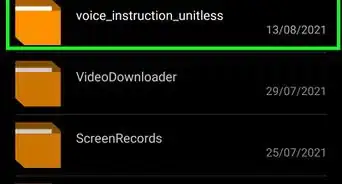
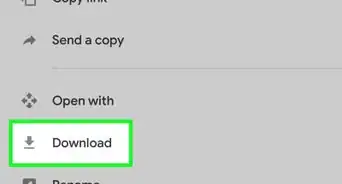
- If you chose to save the file to your Google Drive, Dropbox, or another service, log into that service and download the file to your computer.
-
2Install software that can unpack your TGZ file (optional). Skip this step if you've downloaded a file (or files) that ends with the .zip file extension, which is most common. 7-Zip is a great free option for unpacking the file. Here's how to get it:
- Go to https://www.7-zip.org and click Download next to your version of Windows in the first section.
- Double-click the downloaded file and click Yes to let it run.
- Click Install to install the app.
-
3Open the folder containing your downloaded Google archive. It'll usually be in your Downloads folder unless you chose another location.
-
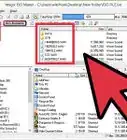
4Double-click the file. This displays the contents of the archive.
- If it's a .TGZ file, the contents will open in the 7-Zip app.
-
5Click Extract All (ZIP) or Extract (TGZ). This option is at the top of the window.
-
6Click Extract (ZIP) or OK (TGZ). This extracts the files to a new folder with the same name. The folder will open automatically and display the files inside.


Method 2
Method 2 of 2:macOS
-
1Save your Google archive to your computer. If you haven't already saved your Google data as an archive to your computer, you can do so at https://takeout.google.com. You'll be given the option to save the file as a ZIP or TGZ file. You can choose either format, but ZIP is more common.
- If you selected the option to have a download link sent to your email when the archive is ready, click the link in your email to start the download. If you're saving more than 50 GB of data, the download will be broken into multiple files.
- If you chose to save the file to your Google Drive, Dropbox, or another service, log into that service and download the file to your computer.
-
2
-
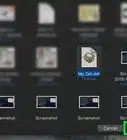
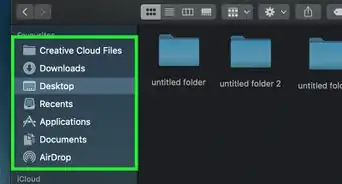
3Open the folder containing the file(s) you downloaded from Google. The filename(s) will end in .zip or .tgz.
-
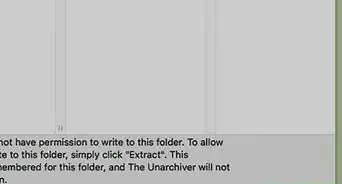
4Double-click the downloaded file. This automatically unzips the file to a new folder with the same name. You can now access the files inside.


About This Article

1. Save the ZIP file to your computer.
2. Double-click the file.
3. Click Extract All.
4. Click Extract.