This article was co-authored by wikiHow Staff. Our trained team of editors and researchers validate articles for accuracy and comprehensiveness. wikiHow's Content Management Team carefully monitors the work from our editorial staff to ensure that each article is backed by trusted research and meets our high quality standards.
The wikiHow Tech Team also followed the article's instructions and verified that they work.
This article has been viewed 2,328 times.
Learn more...
This wikiHow teaches you how to measure a distance on the Google Earth map. You can use the ruler tool in all versions of Google Earth to measure the distance between two points, or the total distance of a custom route on the map.
Steps
Method 1
Method 1 of 2:Using Chrome
-
1Open Google Chrome on your computer. Google Earth requires the Chrome browser to run.
- Alternatively, you can download and use the mobile or desktop app.
-
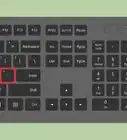
2Open the Google Earth website. Type or paste https://www.google.com/earth/ into the address bar, and press ↵ Enter or ⏎ Return on your keyboard.
-
3Click the Launch Earth in Chrome button. You can click this button on the top-right or the bottom-left corner of the page.
- If you're using a different browser, you can click the Learn more button on the bottom-left, and download the desktop app.
- If you're using Google Earth for the first time, it'll open up to the tutorial screen. Click the SKIP button or the "X" icon on the top-right to skip it.
-
4Scroll up and down to zoom in on the area. Find the area you want to measure, and zoom in by scrolling with your mouse or trackpad.
- Alternatively, use the "+" and "'-" buttons on the bottom-right corner.
-
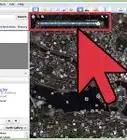
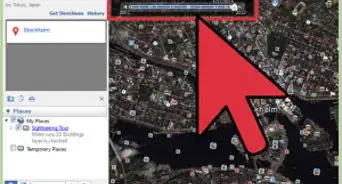
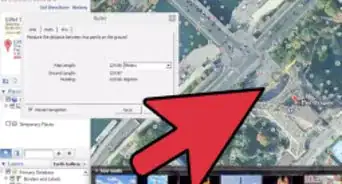
5Click the white ruler icon. This button is on a sidebar on the left-hand side of the page. It will allow you to measure any distance on the Earth map.
-
6Click a location on the map. This will add your starting point.
-
7Click and drag the map to move around. After adding your starting point, you can hold down and drag the map in order to move around without adding another measurement point.
-
8Click another location to add a second point. This will measure the distance between the two points.
- The distance is shown in a white pop-up on the top-right.
- The total distance will also show up in a yellow pop-up label as you move your cursor on the map.
-
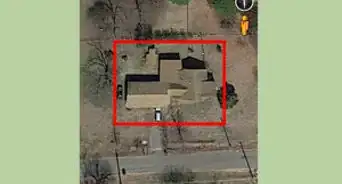
9Add other points to measure a route. You can create multiple location points on the map, and measure the total distance of this route.
-
10Click the Done button on the top-right. This button is listed next to a blue checkmark icon in a white pop-up box on the top-right. It will conclude your route, and show the total distance in the pop-up.
- Optionally, you can click the distance here, and select a different measurement unit like miles, meters, yards or inches.
-
11Click and drag the white dots on the route (optional). You can click and drag a point around to change the measurement distance or route.
- You can drag your original location points, and the halfway points between each location.


Method 2
Method 2 of 2:Using the App
-
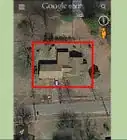
1Open the Google Earth app on your phone or tablet. The Google Earth icon looks like a blue ball on a white background. You can find it on your home screen, in an app folder or on the Apps tray.
-
2Tap the SKIP button. You'll see a tutorial page when you open the Earth app for the first time. Click this button on the top-right to skip the page.
-
3Pinch out to zoom in on the location. You can frame the area you want to measure inside your screen. Just pinch out and pinch in with two fingers to zoom in and out.
-
4Tap the white ruler icon at the top. This button is on a toolbar at the top of your screen. It will allow you to add location points, and measure a distance.
-
5Find the location you want to start. Center your starting point inside the circle in the middle of your screen.
-
6Tap the + Add Point button. This button is in the lower-right corner of your screen. It will add your starting point at this location.
-
7Move the map center to a different location. Hold down and drag the map on your screen to change your location.
- You will see the location's distance to the starting point on a pop-up label below the center point. This distance will change as you move.
-
8Tap + Add Point. This will add a second point at the current location, and show the total distance in the lower-left corner.
-
9Add multiple points to measure a route. You can add points at multiple locations, and measure the total distance of any route on the Earth map.
-
10Tap the white-on-blue checkmark button on the top-right. This button is in the upper-right corner of your screen. It will finalize your route, and measure the distance.
- The distance is shown on a white panel at the bottom of your screen.
-
11Change your distance measurement unit (optional). Just tap the total distance at the bottom of your screen, and a select a different unit to change your measurement.




About This Article

1. Open Google Earth.
2. Click the ruler icon on the toolbar.
3. Click a location (desktop), or tap Add Point (mobile).
4. Add a second point to measure between.
5. Add multiple points to measure a route.