This article was written by Jack Lloyd. Jack Lloyd is a Technology Writer and Editor for wikiHow. He has over two years of experience writing and editing technology-related articles. He is technology enthusiast and an English teacher.
The wikiHow Tech Team also followed the article's instructions and verified that they work.
This article has been viewed 207,334 times.
This wikiHow teaches you how to burn music onto a CD on a Windows 7 computer. As long as your computer is equipped with the correct hardware, you can burn CDs using Windows 7's built-in Media Player program.
Steps
Part 1
Part 1 of 2:Checking Your Computer's Hardware
-
1
-
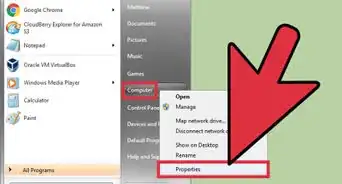
2Click Computer. It's a tab on the right side of the Start window. Doing so will open the My Computer program.
- If you don't have Computer listed in the Start window, type my computer into Start and then click it when it appears at the top of the Start window.
-
3Select your CD drive. Click the CD drive below the "Devices and drives" heading in the middle of the page to select it. The CD drive typically has an image of a disc on top of it.
-
4Click Computer. This tab is in the upper-left corner of the My Computer window. Clicking it prompts a toolbar to appear at the top of the window.
- You can also just right-click the CD drive.
-
5Click Properties. It's the white box with a red checkmark that's on the left side of the Computer toolbar. Doing so opens your disk drive's Properties window.
- If you right-clicked the CD drive, Properties is at the bottom of the drop-down menu.
-
6Look for a Recording tab. It should be in the upper-right corner of the Properties window. If you see the Recording tab here, your computer's CD drive can burn CDs.
- If you don't see the Recording tab, you'll have to buy a USB CD burner drive that plugs into your computer's USB port. You can do this for less than $50.


Part 2
Part 2 of 2:Burning a CD
-
1Make sure you have a blank CD. You can use a blank CD-R for most audio CDs. If you don't have a blank CD-R, you can buy them from most tech departments in stores or online.
-
2Insert your CD into your computer. Press your computer's CD eject button, then place the CD into the tray logo side-up and close the tray.
- If an "AutoPlay" window pops up, close it.
-
3
-
4Type windows media player into Start. This will search your computer for the Windows Media Player program.
-
5Click Windows Media Player. It's a blue icon with an orange circle and a white triangle on it. Doing so will open Windows Media Player.
-
6Click Burn. This tab is in the top-right corner of the Windows Media Player window. A sidebar will open on the right side of the Windows Media Player window.
-
7Click the "Options" button. It's the white box with green checkmarks in the top-right corner of the sidebar. A drop-down menu will appear.
-
8Click the Audio CD option. This will set your burn preferences to "Audio".
-
9Select music to add to the CD. Click and drag songs or albums into the sidebar, then drop them there. Doing so adds them to the CD's burn queue.
-
10Click Start burn. This link is in the upper-left corner of the sidebar. Your music will begin burning to your CD.[1]
- When the burn is complete, your disc will automatically eject from your computer.


Community Q&A
-
QuestionI can only burn 18 songs on the cd. It says there is no more free space. Is this normal?
 Community AnswerYou can only burn a total of 80 minutes for a normal CD-R, so yes, 18 songs is about right.
 -
QuestionWhen I burn music and try to play it, my CD player says "Format Unsupported." What could cause this?Community AnswerEither your CD or your player may not be compatible, or you could have transferred the file incorrectly. Try to copy and paste the file instead.
-
QuestionHow do I make a CD by recording my voice?Community AnswerGet a mp3 recorder or use a recording program on your computer with an external microphone.
-
QuestionWhat do I do if I get an error when making an audio CD with Windows 7?Community AnswerIf you get an error while burning songs onto the disc, either you need to get another disc, or you can start over again. My recommendation is that you look for CD's or DVD's with "Rewriteable" written on it. That way you know you can restart the burn easily if it fails.
Warnings
- Selling CDs with purchased music burned to them is illegal in most countries.Thanks!

-Step-55-Version-2.webp)



About This Article
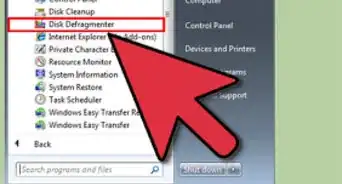
1. Insert a blank CD.
2. Open Windows Media Player.
3. Click Burn.
4. Click the Options menu.
5. Click Audio CD.
6. Drag music to the CD.
7. Click Start burn.