X
wikiHow is a “wiki,” similar to Wikipedia, which means that many of our articles are co-written by multiple authors. To create this article, 9 people, some anonymous, worked to edit and improve it over time.
This article has been viewed 20,472 times.
Learn more...
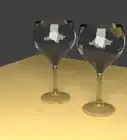
A glass bowl and a napkin seem to go well together, and this is also a creative project. If you want to make it look extra-nice, why not do it in Blender? Just follow the steps below.
Steps
Part 1
Part 1 of 3:Making the Bowl
Part 1
-
1Be sure to switch to the Cycles rendering engine. By default Blender uses its internal rendering engine which is old. The newer Cycles renderer is better and allows use of Graphics card to help render. In the top Menu Bar, you should see a drop-down menu. Click it to switch from "Blender Internal" rendering engine to the "Cycles" engine.
-
2If you don't have the default cube on your screen, go to File >> New >> Reload Start-Up File (CTRL + N).Advertisement
-
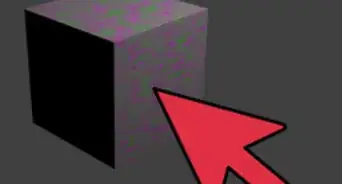
3Be sure the cube is selected and delete it. Select the cube by right clicking it, and press "X" and click Yes to delete it.
-
4Go to Add >> Mesh >> UV Sphere. This will put a sphere in the middle of your screen. If it is not in the middle it means your 3D cursor is not in the middle. If that's the case then press Shift + s and choose cursor to center. Then Select your Sphere and again press Shift + s and choose selection to cursor.
-
5Zoom in closer using your scroll wheel.
-
6Cut off the top of the sphere. To do this:
- Go to Object Mode >> Edit Mode. This will turn the sphere orange.
- Choose the 3D view that you want. It is the icon directly beside the Object Mode button.
- Change the perspective to orthographic. Go to View >> Persp/Ortho. This will change it to orthographic and make it easier to work with.
- Pressing the 5 on your number pad will change the perspective as well.
- Change the way you see it by pressing the 1 on your number keypad. You can change your view by pressing any of the keys shown here.
- Deselect the sphere by pressing A.
- Press the B key. This will bring up the selection pointer.
- Select the top few gridlines at the top of the sphere. From your perspective, it will appear to be three gridlines. In actuality, there is a 4th one at the very top that you can't see.
- Delete the vertices. Do this by selecting X and then Vertices. If something happens and you don't get all of the vertices, just repeat until the top of your sphere is leveled off.
-
7Flatten the bottom of your bowl.
- Press B and select the bottom few gridlines. Then select Scale in your Mesh Tools.
- Press Z. This will make it so that it can only be changed on the Z axis.
- Press 0 and then press Enter.
- B > Make selection > Scale > Z > 0 > Enter (It's that quick! A repeat of the prior two lines.)
-
8Check your progress.
-
9Change the 3D view back to Solid and and then the Edit Mode back to Object Mode.
-
10Using your scroll key, press it down and swivel the bowl so that you can see in the top.
-
11Select the Object Modifier Button (the wrench).
- Add a Modifier.
- Select Solidify.
-
12
-
13
-
14Check your progress. This is what it should look like now.
-
15
-
16
-
17Go the Surface section >> Add Nodes >> Diffuse BSDF >> Glass BSDF.Advertisement


Part 2
Part 2 of 3:Making a 'Table' for the Bowl
Part 2
-
1Select Add >> Mesh >> Plane.
-
2Press Scale >> 5 (on the keypad) >> Enter. Then press 1. This will enlarge the surface and give you a front view so that you can move it to the right place on the cup. Move your image around to see if there are any gaps.
-
3Click on the blue arrow and move the plane to just below the bowl.
-
4Set the material for the plane.
- Be sure the Material Modifier is selected, then press New. You can make any changes that you want. For the purposes of this tutorial, the default Diffused BSDF and the color white are selected.
-
5Be sure to save your project if you haven't already.Advertisement


Part 3
Part 3 of 3:Making the Napkin
Part 3
-
1Select Add >> Mesh >> Plane.
-
2Press Scale >> 3 >> Enter. This will enlarge the napkin but not as large as the table.
-
3Press Rotate >> Z (restricting the movement to the Z axis), 45 (on the keypad) >> Enter. This will turn it diagonally to the bowl.
-
4Press Rotate >> X (X axis) >> 70 >> Enter.
-
5Press 5 to change the view.
-
6Position the napkin over the cup.
-
7Turn your project sideways by pressing 3.
-
8Use the green arrow to move the corner of the napkin just to the inside of the left lip of the bowl, as seen here. Since the napkin will be draped over the bowl, this will make it so that that corner falls inside of it.
-
9Set the material of the napkin.
- Click on the Material Modifier >> Add. Then change Diffused BSDF to Glossy BSDF.
- Set the Roughness to 1.
-
Choose the color. It can be whatever color you want.
- If you want to change your current view of the napkin, instead of waiting for the render, go to Settings >> Viewport color and change its color. Otherwise, just wait for the render.
-
10Start bending your cloth.
- Go from Object Mode to Edit mode.
- Be sure that your napkin is selected by pressing A. You will know it is selected if it is orange.
- Select Subdivide. Go to the Cuts option then 50 >> Enter.
- Go back to Object Mode.
- Add Modifiers. The order is very important.
- Click on the Wrench again >> Add Modifier >> Cloth.
- Add Modifier >> Solidify. Be sure the thickness is set to 0.01.
- Add Modifier >> Subdivision Surface. Set both of the View and Render values to 2.
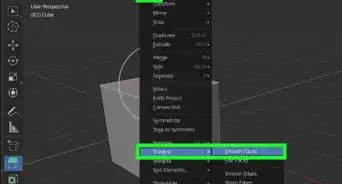
- Go to Mesh Tools (on the left) >> Shading >> Smooth.
- Start making the adjustments for the cloth modifier.
-
11
-
12Start modifying the properties of the napkin.
- Select the Cotton Preset.
- Change the Steps to 10.
- Be sure that Cloth Collision is checked. This allows the cloth to interact with the bowl.
- Open up the Cloth Collision section and make sure that Self Collision is also marked. This allows the cloth to interact with itself.
-
13Right click on the bowl.
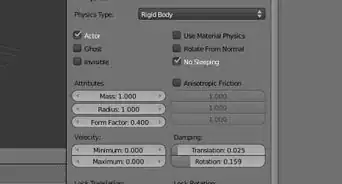
- Look at the panel on the right (you should still be in the Physics Modifier panel). Select Collision.
-
14Repeat the above process for the table surface.
-
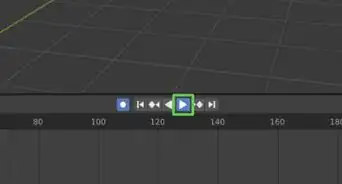
15Select the right arrow in the animation toolbar and watch your napkin as it falls to the table. It will take a little while.
-
16Once it has completed, go through the animations, slide by slide, until you find an image that you like.
-
17Set up the light source.
- Zoom away until you can see the lamp. Right click on it to select it.
- Select View >> 1 (Keypad). This will give you a front view.
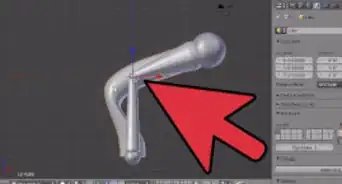
- Using the RED arrow, move the lamp so that it is centered over the bowl.
- Using the blue arrow, lower the lamp so that it is closer to the bowl.
- Change to a side view.
- Using the green arrow, move it so that it is just a little in front of the bowl.
-
18
-
19
-
20Rotate the scene so that you can see it better. You want to be able to see into the bowl.
-
21Increase the size of the surface/table. You want it to fade to black in the final image. Increasing the size will do this.
- Be sure the surface is selected, then select Scale >> 20 >> Enter.
-
22Set up the camera view. Go to View >> Camera. As you can see here, the view is not what it should be.
-
23Change the camera view properties. This will allow you to change what you see through that particular view.
- Go to View >> Properties.
- In the panel that comes up, select Lock Camera to View.
- Click on View >> Properties again, to hide the panel.
- From this viewpoint, move the bowl and napkin around until the surface that the bowl is on first appears on the horizon. From there, move the bowl and napkin the way you want it.
[[Image:Blender Bowl and napkin 2.png|center|
-
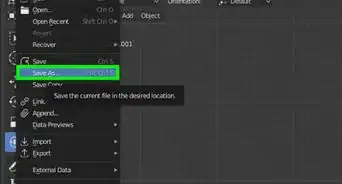
24Save your work. It's always a good idea to save your work before rendering, in case something goes wrong.
-
25
-
26Once 'complete', check out your first render and make sure it looks like you want it to.[[Image:Blender complete sample render.png|center|
-
27Go to Samples, under Sampling and change it to a higher number. The number was changed to 2000 in this instance. The higher the number, the better the result. However, it will also take longer.[[Image:Sampling 2000.png|center]
-
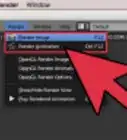
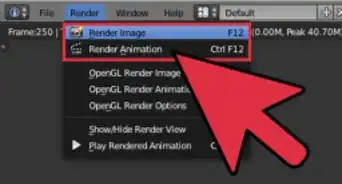
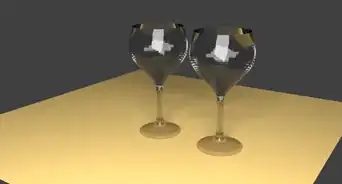
28Press render and allow it to render for the final result. This particular one took about 45 minutes on a laptop computer.
[[Image:Completed image.png|center|Advertisement



About This Article
Advertisement