This article was written by Darlene Antonelli, MA. Darlene Antonelli is a Technology Writer and Editor for wikiHow. Darlene has experience teaching college courses, writing technology-related articles, and working hands-on in the technology field. She earned an MA in Writing from Rowan University in 2012 and wrote her thesis on online communities and the personalities curated in such communities.
This wikiHow teaches you how to make your Twitch stream private on Android. Unfortunately, there is no way in Twitch to make a stream private, but you can block some users from interacting with you. YouTube, however, does have the ability to create private streams, so this wikiHow will show you how to use YouTube to stream privately if you have at least 1,000 subscribers[1] .
Steps
Method 1
Method 1 of 2:Streaming with YouTube
-
1Open YouTube. This app icon looks like a white play button inside a red rectangle. You can find this app on either your home screen, in the app drawer, or by searching.
- Since YouTube supports creating a private stream, you can use it instead of Twitch to broadcast privately (or to a select group of people).
- You have to have at least 1,000 subscribers to live stream on YouTube from your phone. If you do not have 1,000 subscribers, you can stream via webcam or desktop on your computer.
- Your YouTube channel will have to be verified with your phone number for this to work, which can take up to 24 hours.
-
2Tap the capture icon .
- If this is your first time using YouTube to capture video, you will have to make a few permissions first including allowing the app to access your cameras and microphones. Follow the on-screen instructions to do so.[2]
- If your account is not verified, you'll be prompted to verify it now. Verification takes about 24 hours to complete, so you won't be able to stream until that time period has passed.
Advertisement -
3Tap Go Live. You’ll find this in the tile to the right.
-
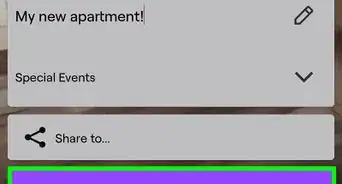
4Type a title. This is the title that will appear with your stream.
-
5Select a privacy level. Since you don't want your stream to be public, you can choose one of the following options:
- Select Unlisted if you want to be able to share a link with specific people. Nobody else will be able to find your stream unless they have the link.
- Select Private if you don't want anyone else to see your stream.[3] .
-
6Tap Next. You will see a countdown and your camera will take a picture to use as your stream thumbnail.
-
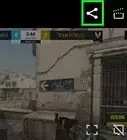
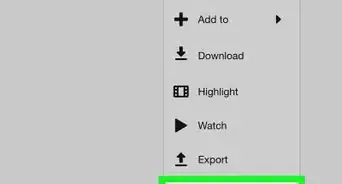
7Tap Share. If you want to share a link to your unlisted stream, choose this option to open a list of apps to share with.
-
8Select a sharing method. You can tap an app like Messenger or Instagram to share your link with certain contacts on those apps, or select Copy Link to paste the link into a message directly.
-
9Tap Go Live. Your live stream will begin!
-
10Tap Finish to end your stream.Advertisement


Method 2
Method 2 of 2:Blocking a User on Twitch
-
1Open Twitch. Though you can't prevent people from viewing your Twitch stream, you can use this method to prevent certain users from contacting you. This app icon looks like a white chat bubble on a purple background. You can find this on either your home screen, in the apps drawer, or by searching.
- If you don’t have Twitch, you can get it for free from the Play Store .
-
2Tap your avatar. You’ll find this in the upper left corner of your screen. Your profile page will load.
-
3Tap Go Live. You’ll find this under your avatar.
- Before you can continue, you will have to allow the app to use your camera and microphone.
- You’ll also be presented with a page that will welcome you to mobile streaming that gives you a few tips.
-
4Type in a title for your stream. You can do this by tapping next to the pencil icon.
-
5Tap the drop-down menu. You need to select a category to stream in, like Just Chatting or Makers&Crafters.
-
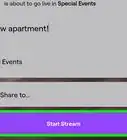
6Tap Start Stream. This starts your live stream.
-
7Tap the user you want to block. The viewer list is on the right side of the screen. This opens a menu with options for that user.
-
8Tap Block. A confirmation message will appear.
-
9Confirm that you want to block the user. Once you confirm, this user will no longer be able to comment on your stream or contact you directly. They will still be able to view your stream.Advertisement


References
About This Article

1. Open YouTube.
2. Tap the capture icon.
3. Tap the Go Live icon.
4. Type your stream title.
5. Set your privacy.
6. Tap Next.
7. Tap Share to share your stream.
8. Tap Go Live.