X
This article was written by Nicole Levine, MFA. Nicole Levine is a Technology Writer and Editor for wikiHow. She has more than 20 years of experience creating technical documentation and leading support teams at major web hosting and software companies. Nicole also holds an MFA in Creative Writing from Portland State University and teaches composition, fiction-writing, and zine-making at various institutions.
The wikiHow Tech Team also followed the article's instructions and verified that they work.
This article has been viewed 2,314 times.
This wikiHow teaches you how to make someone an admin of your Skype group. You must already be a group admin to assign this status to another member.
Steps
-
1Open Skype. It’s a blue icon with a white “S,” typically found on your home screen.
- If you’re not already signed in, type your Skype username, then tap the blue arrow icon. Enter your password, then tap Sign in.
-
2Tap Recent. It’s at the bottom-left corner of the screen.Advertisement
-
3Select your group. As long as you’ve been interacting with the group lately, you will see it in the Recent list.
- If you don’t see the group, tap Search Skype at the top of the screen, then type the group’s name. You should then be able to tap it in the search results.
-
4Tap the group’s name. It’s at the top-center area of the group. This opens the group’s profile.
-
5Tap the name of the person you want to make an admin. You’ll find this person, along with other group members, in the “Participants” section of the profile. A conversation with this person will appear on the screen.
- Group admins have the word “admin” listed next to their names.
-
6Tap the person’s name. It’s at the top-center part of the screen. A menu will appear.
-
7Select View Profile.
-
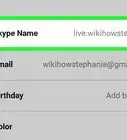
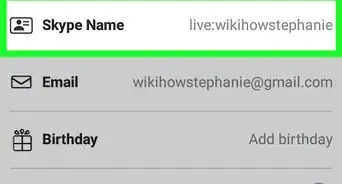
8Copy this person’s Skype username. To do this, tap and hold the name below “Skype Name,” then select Copy when it appears.
-
9Return to the group chat.
-
10Type /setrole <username> MASTER into the text box. Replace “<username>” with the person’s Skype username. Here’s how:
- Type /setrole and tap the space bar.
- Tap and hold the chat box, then tap Paste when it appears. Once you see the username, tap the space bar.
- Type MASTER.
-
11Tap the Send button. It’s the blue circle with a white paper airplane inside. The person you selected is now a group admin.
- To add another group admin, repeat this process using another group member’s username.
Advertisement




About This Article

Nicole Levine, MFA
Tech Specialist
This article was written by Nicole Levine, MFA. Nicole Levine is a Technology Writer and Editor for wikiHow. She has more than 20 years of experience creating technical documentation and leading support teams at major web hosting and software companies. Nicole also holds an MFA in Creative Writing from Portland State University and teaches composition, fiction-writing, and zine-making at various institutions. This article has been viewed 2,314 times.
How helpful is this?
Co-authors: 2
Updated: May 25, 2021
Views: 2,314
Categories: Skype
Advertisement