X
This article was written by Jack Lloyd. Jack Lloyd is a Technology Writer and Editor for wikiHow. He has over two years of experience writing and editing technology-related articles. He is technology enthusiast and an English teacher.
The wikiHow Tech Team also followed the article's instructions and verified that they work.
This article has been viewed 251,967 times.
This wikiHow teaches you how to create an event banner in Microsoft Word for Windows or Mac computers. You can use a pre-made template to create your banner, or you can make your own from scratch.
Steps
-
1Open Microsoft Word. It's a dark-blue app with a white "W" on it.
-
2Click the search bar. It's at the top of the Word window.[1]
- On Mac, first click File in the upper-left corner, then click New from Template… in the drop-down menu.
Advertisement -
3Type in banner in the search bar, then press ↵ Enter. Doing so will search the Microsoft template database for banner templates.
-
4Select a banner template. Click on a template that you want to use based on its preview picture. This will open the template's page.
- Since you can change the text to say whatever you want it to say, choose a banner that has a design that you like rather than a theme that's appropriate for the occasion.
-
5Click Create. It's to the right of the template's preview. Doing so opens the template in Microsoft Word.
-
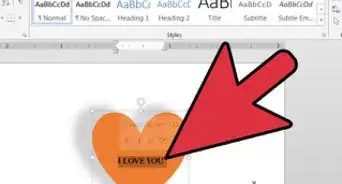
6Edit the banner text. Replace the text on each page with your preferred banner text.
- You can also change the text's font and color by clicking Home, selecting the text that you want to alter, and selecting your preferred option in the "Font" section of the toolbar.
-
7Change your banner's font. In the "Font" section of the toolbar, you'll need to change the following aspects of your banner's text:
- Size - Click the number in this section, then type in at least 300 and press ↵ Enter.
- Font - Click the font name (e.g., Calibri) box, then select a font that you like.
- Color - Click the downward-facing arrow to the right of the "A" button with a colored bar below it, then click the color that you want to use.
-
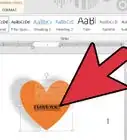
8Upload a background image. To do so:[2]
- Click the Design tab.
- Click Watermark
- Click Custom Watermark...
- Check "Picture watermark", then click Select Picture...
- Select a picture (on Windows, first click On My Computer)
- Click the "Scale" drop-down box and select a scale.
- Click OK
-
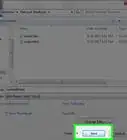
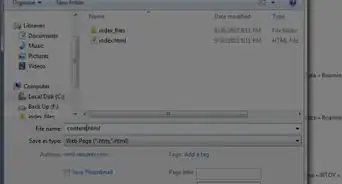
9Save your banner. To do so:
- Windows - Click File, click Save As, double-click This PC, click a save location on the left side of the window, type your banner's name into the "File name" text box, and click Save.
- Mac - Click File, click Save As..., enter your banner's name in the "Save As" field, click the "Where" box and select a save folder, and click Save.
Advertisement


Community Q&A
-
QuestionHow do I put words and designs on my banner?
 Community AnswerClick on the banner and start typing. Your typing should appear, just as they would for a text box.
 -
QuestionHow do I remove a banner in Word?
 Community AnswerYou can just delete the document and start a new document.
Warnings
- Some printers might chop the text off of one side of the banner. To fix this, you'll likely have to increase the margins when selecting printing settings.Thanks!
Advertisement












References
About This Article
Advertisement