X
wikiHow is a “wiki,” similar to Wikipedia, which means that many of our articles are co-written by multiple authors. To create this article, 10 people, some anonymous, worked to edit and improve it over time.
This article has been viewed 72,072 times.
Learn more...
Printing labels can be complicated if you are not familiar with how your printer is set up. Taking a few preparatory steps before you begin can help you avoid hassles and frustrations with your inkjet printer. Load labels into an inkjet printer by starting with the right labels, and running a few tests to ensure proper placement and printing.
Steps
-
1Start with good quality labels. Purchase labels from an office supply store or business stationary store - a mobile office supplies store or market stall may not have the range a stationary office supplies store carries. Cheap labels may be more likely to peel off during printing.
-
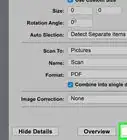
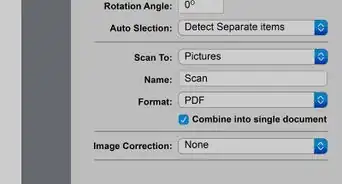
2Check your printer settings. Confirm your settings are at "Normal" or "Plain Paper" and set with 300 or 600 DPI resolution. Be sure you have plenty of ink.Advertisement
-
3Test label placement. Print your labels onto a blank sheet of white paper before loading the labels into the printer. Place the sheet you printed on top of a sheet of labels and hold them up to some light. This will tell you if the label positions are correct.
-
4Make sure the label sheets are not stuck together. Fan them out if you are loading a stack of labels into the printer. Be careful not to bend the corners or peel off any labels while doing this.
-
5Determine if you need to load inkjet labels facing down or facing up. This depends on how your inkjet printer is set up. To figure this out, print something on a piece of letterhead or other marked paper, and make a note of how you loaded the paper into the printer.
-
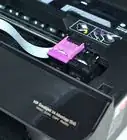
6Load the labels into the paper tray. The number of label sheets you use will depend on how many labels you are preparing to print. Keep a stack of 25 pages of plain paper in the tray to better support the label sheets.
-
7Fit the paper width lever around the labels so that it is barely touching the sheets. Do not fit it too tightly or the labels will buckle. If it is too loose, the labels may not print straight.
-
8Print your labels. Allow the ink to dry completely on the labels before removing them, to avoid smudging.Advertisement


Community Q&A
-
QuestionWhen printing label, which side is up for it to print correctly?
 Gerald J. O'BrienCommunity AnswerPut a large X on a sheet of paper. Insert the page with the X side up. Then print a page. You will see on which side the X printed.
 -
QuestionI am unable to remove the paper tray in my Sony PIXMA printer. Why?Gerald J. O'BrienCommunity AnswerIt may not be removable. On my last HP printer, I could remove it. On my new HP printer, I could not. It's possible the manufacturer has had problems with users jamming the tray when re-inserting.
Warnings
- Avoid running a sheet of labels through your inkjet printer more than 1 time. Multiple runs through a printer can make a label curl or peel off inside the printer, which can mean costly repairs and major damage.Thanks!
Advertisement
Things You'll Need
- Labels
- Paper
- Instruction manual
References
About This Article
Advertisement