X
This article was written by Nicole Levine, MFA. Nicole Levine is a Technology Writer and Editor for wikiHow. She has more than 20 years of experience creating technical documentation and leading support teams at major web hosting and software companies. Nicole also holds an MFA in Creative Writing from Portland State University and teaches composition, fiction-writing, and zine-making at various institutions.
The wikiHow Tech Team also followed the article's instructions and verified that they work.
This article has been viewed 3,611 times.
This wikiHow teaches you how to leave feedback for an eBay transaction when you’re using a computer.
Steps
-
1Go to https://www.ebay.com in your web browser. Now that your eBay transaction is complete, you have the opportunity to leave feedback for the other party in the sale.
- You have up to 60 days to leave feedback after completing your transaction.[1]
-
2Click My eBay. It’s near the top-right corner of the screen.
- If prompted to sign in, enter your eBay username and password, then click Sign in.
-
3Click the Account tab. It’s near the top-left corner of the screen, right below “My eBay: Summary.”
-
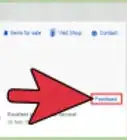
4Click Feedback. It’s in the left sidebar.
-
5Click the item for which you’d like to leave feedback. Items eligible for feedback appear under the “Items Awaiting Feedback” heading.
-
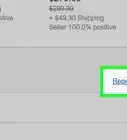
6Click Leave Feedback. It’s in the “Actions” column.
-
7Rate your transaction. Leaving positive feedback helps eBay sellers build their reputations. If the transaction went smoothly, select Positive. If there were problems with the transaction that were resolved, but you’re still unhappy, select Neutral. If something went wrong and the other party did not sufficiently correct the issue in accordance with their policy, select Negative.[2]
-
8Type a comment. The comment should summarize the reason you selected the above rating.
- For example, if you received the item as described within the standard delivery time, you may want to say, “Item as described. Fast shipping.”
- If you sold an item but the buyer never paid, you may say something like, “Buyer never paid.”
- You may also be prompted to leave a star rating for other aspects of the transaction, such as shipping timeliness or accuracy of the description.
-
9Click Leave Feedback. It’s at the bottom of the ratings area. Your feedback will now appear on the buyer or seller’s page.



References
About This Article

Nicole Levine, MFA
Tech Specialist
This article was written by Nicole Levine, MFA. Nicole Levine is a Technology Writer and Editor for wikiHow. She has more than 20 years of experience creating technical documentation and leading support teams at major web hosting and software companies. Nicole also holds an MFA in Creative Writing from Portland State University and teaches composition, fiction-writing, and zine-making at various institutions. This article has been viewed 3,611 times.
Co-authors: 3
Updated: February 23, 2021
Views: 3,611
Categories: Ebay