X
This article was written by Nicole Levine, MFA. Nicole Levine is a Technology Writer and Editor for wikiHow. She has more than 20 years of experience creating technical documentation and leading support teams at major web hosting and software companies. Nicole also holds an MFA in Creative Writing from Portland State University and teaches composition, fiction-writing, and zine-making at various institutions.
This article has been viewed 21,633 times.
This wikiHow teaches you how to add your own label to a math equation in Microsoft Word.
Steps
-
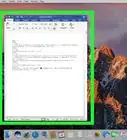
1Open Microsoft Word. It’s in the Windows menu (Windows) or in the Applications folder (macOS).
-
2Click the Insert tab. It’s at the top of the screen (to the right of the Home tab).
-
3Click the arrow next to the “Equation” button. It’s near the top-right corner of the screen. The arrow is pointing downward. A list of equations will appear.
-
4Click an equation. You'll see it appear in the document.
-
5Click the References tab. It’s at the top of the screen (to the right of the "Page Layout" tab).
-
6Click Insert Caption. It’s in the “Captions” group near the top of the screen. This opens the Captions dialog box.
-
7Click “Label” drop-down menu. A list of options will appear.
-
8Click Equation.
-
9Type your desired label into the “Caption” box. It’s the box at the top of the window.
-
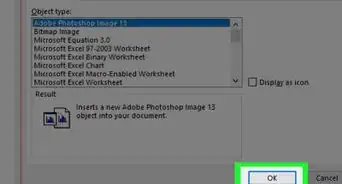
10Click OK. The equation is now labeled with the text you typed into the “Caption” box.














About This Article

Nicole Levine, MFA
Tech Specialist
This article was written by Nicole Levine, MFA. Nicole Levine is a Technology Writer and Editor for wikiHow. She has more than 20 years of experience creating technical documentation and leading support teams at major web hosting and software companies. Nicole also holds an MFA in Creative Writing from Portland State University and teaches composition, fiction-writing, and zine-making at various institutions. This article has been viewed 21,633 times.
How helpful is this?
Co-authors: 1
Updated: July 24, 2017
Views: 21,633
Categories: Microsoft Word