This article was co-authored by wikiHow Staff. Our trained team of editors and researchers validate articles for accuracy and comprehensiveness. wikiHow's Content Management Team carefully monitors the work from our editorial staff to ensure that each article is backed by trusted research and meets our high quality standards.
This article has been viewed 2,664 times.
Learn more...
This wikiHow teaches you how to join together multiple vector lines in an Adobe Illustrator file, using a computer. Joining multiple vectors will connect the end-points of all the selected paths, and allow you to edit the whole selection as a single vector.
Steps
-
1Open the file you want to edit in Adobe Illustrator. Find your Illustrator file on your computer, and double-click on the file name or icon to open it in Adobe Illustrator.
-
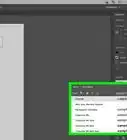
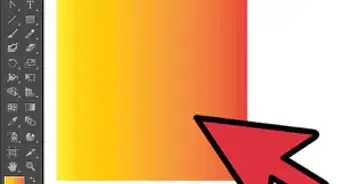
2Select the "Selection Tool" on the left-toolbar. This button looks like a black arrow icon near the upper-left corner of the Illustrator window. It will allow you to draw a marquee, and select all the vectors you want to join.
- Alternatively, press V on your keyboard. This keyboard shortcut will switch you to the Selection Tool.
Advertisement -
3Marquee around all the vectors you want to join. Hold down your mouse with the Selection Tool, and draw a marquee on the canvas to include all the vectors you want to join together.
- This will select all the paths inside the marquee.
-
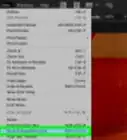
4Click the Object menu. You can find it on the tab bar at the top of your screen. It will open a drop-down menu.
-
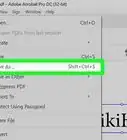
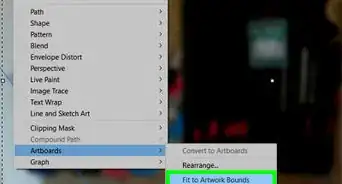
5Hover over Path on the Object menu. This will open a sub-menu.
-
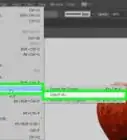
6Click Join on the Path menu. This will instantly join together all the vectors in your marquee selection. You can now edit this whole selection as a single vector line.
- Alternatively, press Ctrl+J (Windows) or ⌘ Cmd+J (Mac) on your keyboard. This is the keyboard shortcut for the Join function. It will join and connect all your selected vectors.
Advertisement




About This Article

1. Open your Illustrator file.
2. Click the Selection Tool on the left toolbar, or press "V".
3. Draw a marquee, and include all your vectors.
4. Click the Object menu at the top.
5. Hover over Path.
6. Click Join.