X
wikiHow is a “wiki,” similar to Wikipedia, which means that many of our articles are co-written by multiple authors. To create this article, volunteer authors worked to edit and improve it over time.
This article has been viewed 1,609 times.
Learn more...
Visopsys is a small graphical operating system currently in development. As it does not support many devices yet, it is best to test it in a virtual machine or emulator, like VirtualBox. This article describes how to configure the virtual machine, and how to run the partitioning tool and installer for Visopsys.
Steps
Part 1
Part 1 of 2:Configuring the virtual machine
Part 1
-
1
-
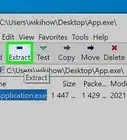
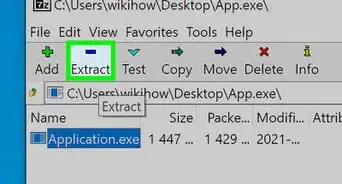
2Go to the Visopsys download page. Download the file marked Latest ISO (CD/DVD) version. Unzip the file.Advertisement
-
3
-
4Select the name and operating system type. Click "Next" when ready.
- "Visopsys" will work for the Name field
- Choose "Other" for the Type option
- Choose "Other/Unknown" for the Version option
-
5Select the amount of RAM for the virtual machine. The default 64 MB will work fine, as there is little that Visopsys can do with more right now.
-
6Create a virtual hard disk image. The default size of 2 GB is more than sufficient. The defaults of VDI format and Dynamically allocated are also fine.
-
7Click the Start button. When prompted, choose the Visopsys ISO as the startup disk.Advertisement


Part 2
Part 2 of 2:Running the installer
Part 2
-
1
-
2
-
3
-
4Click "OK" on the warning dialog. The error is there because the disk is blank and has no partition table.
-
5
-
6Select a partition type. FAT32 or FAT32 (LBA) are the best options, although FAT16 will also work.
-
7
-
8Click "Write changes". Click OK when prompted to confirm.
-
9
-
10Right-click the disk at the top, and choose "MBR boot menu." Click "OK" when prompted.
-
11
-
12
-
13
-
14Choose an admin password. Alternatively, you can leave this blank. If you want to use a password, use Tab to switch between the old and new fields, not your mouse cursor (this is probably a bug).
-
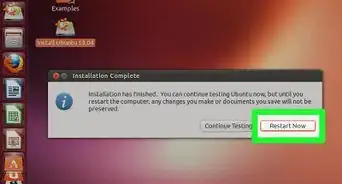
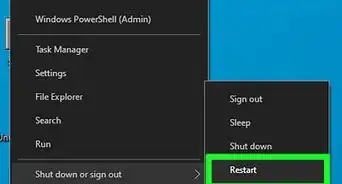
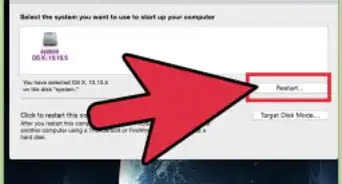
15Reboot when prompted. VirtualBox should now boot from the hard drive instead of the CD.Advertisement






References
- https://visopsys.org/download/ (Visopsys download page)
About This Article
Advertisement