This article was written by Darlene Antonelli, MA. Darlene Antonelli is a Technology Writer and Editor for wikiHow. Darlene has experience teaching college courses, writing technology-related articles, and working hands-on in the technology field. She earned an MA in Writing from Rowan University in 2012 and wrote her thesis on online communities and the personalities curated in such communities.
This article has been viewed 4,741 times.
This wikiHow will show you how to insert the current date in Word. You can either insert the date you created the document or you can insert a date that updates as the document is opened.
Steps
-
1Open your Word document. You can do this from the Word “File” tab or you can find the file in your file browser, right-click, and select “Open With…” and “Word.”
-
2Move your cursor where you want to insert the date.Advertisement
-
3Click the Insert tab. This is in the editing ribbon above the document.
-
4Click the calendar and clock icon. This is the “Date and Time” button. Depending on the size of your screen, you might see “Date & Time” next to the icon.
-
5Click to select the date and time format you want. Formats available are similar to mm/dd/yyyy and 30 May 2019.
-
6Click to check the box next to “Update automatically.” This ensures the date updates when the document is opened.
- You can also insert the updating date by pressing Control+⇧ Shift+D.
- If this is left unchecked, the date will remain the same.[1]
-
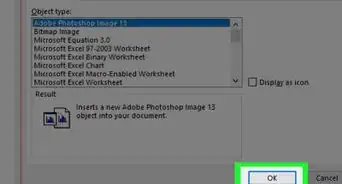
7Click Ok. The dialog box disappears and the date is inserted at your cursor.Advertisement















References
About This Article

1. Open a Word document.
2. Move your cursor where you want to insert the date.
3. Click the Insert tab.
4. Click the calendar and clock icon.
5. Click to select a date format.
6. Click the box to enable Update automatically.
7. Click Ok.