This article was written by Nicole Levine, MFA. Nicole Levine is a Technology Writer and Editor for wikiHow. She has more than 20 years of experience creating technical documentation and leading support teams at major web hosting and software companies. Nicole also holds an MFA in Creative Writing from Portland State University and teaches composition, fiction-writing, and zine-making at various institutions.
The wikiHow Tech Team also followed the article's instructions and verified that they work.
This article has been viewed 3,662 times.
This wikiHow teaches you how to hide mutual friends from your Facebook contacts when you're using a computer. The only way to do this is to hide your friends list and ask your friends to hide theirs.
Steps
-
1Go to https://www.facebook.com in a web browser. If you're not signed into Facebook, enter your login details to sign in now.
-
2Click the down-arrow. It's at the top-right corner of Facebook. A menu will expand.
-
3Click Settings. It's toward the bottom of the menu.
-
4Click Privacy. It's in the left column.
-
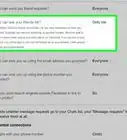
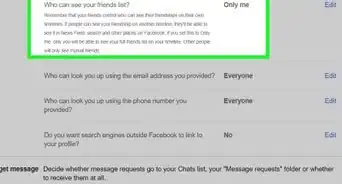
5Click Edit next to “Who can see your friends list?” It's in the right panel. A drop-down menu will appear below.
-
6Click the drop-down menu. It's the blue button under “Who can see your friends list?”
-
7Select Only me. This ensures that nobody but you can see your friends list, though your friends can still see your mutual friends.
-
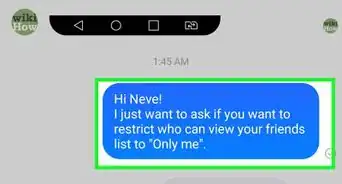
8Ask your friends to complete these steps. If your friends also hide their friends lists, they won't be able to see your mutual friends list when visiting your Facebook profile.



About This Article

1. Sign into Facebook.
2. Click the down-arrow.
3. Click Settings.
4. Click Privacy.
5. Click Edit.
6. Click the drop-down menu.
7. Click Only me.
8. Ask your friends to complete these steps.