X
This article was written by Nicole Levine, MFA. Nicole Levine is a Technology Writer and Editor for wikiHow. She has more than 20 years of experience creating technical documentation and leading support teams at major web hosting and software companies. Nicole also holds an MFA in Creative Writing from Portland State University and teaches composition, fiction-writing, and zine-making at various institutions.
The wikiHow Tech Team also followed the article's instructions and verified that they work.
This article has been viewed 4,389 times.
This wikiHow teaches you how to archive the Facebook messages you've already seen so they're no longer visible in your inbox.
Steps
Method 1
Method 1 of 2:Using Facebook.com
Method 1
-
1Go to https://www.facebook.com in a web browser. If you're not already logged in, enter your email address and password, then click Log In.
-
2Click Messenger. It's on the left side of the screen, right below “News Feed.”
-
3Find the conversation you want to hide. Your messages appear in the panel along the left side of the screen. Don't click the conversation. Just make sure it's visible.
-
4Hover your mouse over conversation. Some icons will appear at the bottom of the conversation's name.
-
5Click the gear icon. A pop-up menu will appear.
-
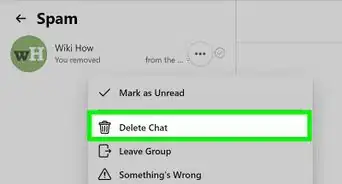
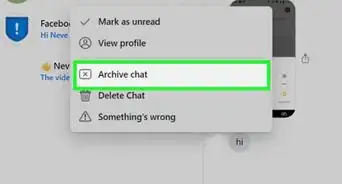
6Click Archive. This will move the message to a hidden folder outside of the inbox.
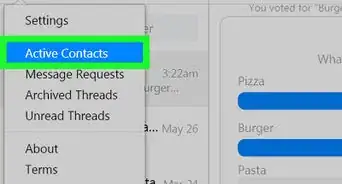
- To view hidden/archived messages, click the blue gear outline at the top-left corner of the Messenger panel, then select Archived Threads.
- If the person sends you another message, the conversation will return to your inbox as a new message. To return the message to your Inbox yourself, simply send a reply.


Method 2
Method 2 of 2:Using Messenger.com
Method 2
-
1Go to https://www.messenger.com in a web browser. This is Facebook's official Messenger app for computers.
- If prompted, click Continue as <your name> or enter your account information to sign in.
-
2Find the conversation you want to archive. Your conversation list appears on the left side of the screen. Don't click to open it, just make sure it's in view.
-
3Hover your mouse over the conversation. A set of icons will appear at the bottom of the conversation's name.
-
4Click the gear icon. It's the icon at the bottom-right corner of the conversation.
-
5Click Archive. This moves the conversation to a hidden folder called Archived.
- To view a list of your archived messages, click the blue outline of a gear at the top-left corner of the Messenger panel and select Archived Threads.
- If your friend replies to the conversation while it's archived, the conversation will return to your inbox as a new message. To return the conversation to the inbox yourself, send a reply.


About This Article

Nicole Levine, MFA
Tech Specialist
This article was written by Nicole Levine, MFA. Nicole Levine is a Technology Writer and Editor for wikiHow. She has more than 20 years of experience creating technical documentation and leading support teams at major web hosting and software companies. Nicole also holds an MFA in Creative Writing from Portland State University and teaches composition, fiction-writing, and zine-making at various institutions. This article has been viewed 4,389 times.
How helpful is this?
Co-authors: 3
Updated: May 25, 2021
Views: 4,389
Categories: Facebook Messenger