This article was co-authored by wikiHow Staff. Our trained team of editors and researchers validate articles for accuracy and comprehensiveness. wikiHow's Content Management Team carefully monitors the work from our editorial staff to ensure that each article is backed by trusted research and meets our high quality standards.
The wikiHow Tech Team also followed the article's instructions and verified that they work.
This article has been viewed 758,533 times.
Learn more...
If you're watching a show or movie through Netflix's streaming services, it only takes a couple of clicks to turn on subtitles. Most devices that can run Netflix support subtitles. However, it's important to note that not all movies and shows have subtitles, and not all of these will support languages other than English.
Steps
Method 1
Method 1 of 11:PC and Mac
-
1Start the video that you want to add subtitles to. You can add subtitles to videos that you stream through your web browser.
-
2Move your mouse while the video is playing. This will display the playback controls.Advertisement
-
3Click the Dialog button. The button looks like a speech bubble. If you don't see this option, then the video you are watching does not have any subtitles.
-
4Use the drop-down menu to select your desired subtitles. The available subtitles will vary depending on the content. Your chosen subtitles will be displayed immediately.
- If you are not able to see your selected subtitles, try disabling the extensions for your web browser. See Disable Add-Ons for detailed instructions for the major browsers.[1]
- Several users have reported issues with Internet Explorer and the Windows Netflix app. If you use either of these to watch Netflix and cannot get subtitles to work correctly, try using a different browser for Netflix.[2]
Advertisement


Method 2
Method 2 of 11:iPhone, iPad, and iPod touch
-
1Start watching a video in your Netflix app. You can enable subtitles for any video that supports them.
-
2Tap the screen to display the playback controls. You'll need to do this while the video is actually playing.
-
3Tap the Dialog button in the upper-right corner. The button has a picture of a speech bubble. This will display the audio and subtitle options.
-
4Select the "Subtitles" tab if necessary. This will display a list of available subtitles. The iPad will display both options at once.
-
5Tap the subtitles you want to use and then tap "OK." The subtitles will load immediately and your video will resume.Advertisement


Method 3
Method 3 of 11:Apple TV
-
1Ensure that your Apple TV is up to date. If you have an Apple TV 2 or 3, you'll need to be running Software Version 5.0 or later. If you're using an Apple TV 4, you'll need tvOS 9.0 or later installed.
-
2Open the subtitles menu while a video is playing in Netflix. The method for this is different depending on your Apple TV model:
- Apple TV 2 and 3 - Press and hold the center button on the remote.
- Apple TV 4 - Swipe down on the touchpad on the remote.
-
3Select your subtitles. Use the remote to highlight the subtitles you want to select. Press the Select button on your remote to apply the subtitles.Advertisement


Method 4
Method 4 of 11:Chromecast
-
1Open the Netflix app on device controlling your Chromecast. You'll be changing the subtitle options using the device that is controlling your Chromecast. This could be your Android or iOS device.
-
2Tap the screen on your Chromecast device to display the playback controls. You'll need to have the video open in the Netflix app to do this.
-
3Tap the Dialog button. This can be found in the upper-right corner, and has a speech bubble image.
-
4Tap the "Subtitles" tab and then select the subtitles you want. When you tap "OK," the subtitles will be applied to the video you are watching.Advertisement


Method 5
Method 5 of 11:Roku
-
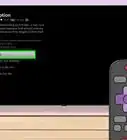
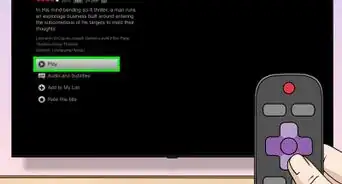
1Select the video that you want to watch. Don't start playing it yet, as you'll be changing your subtitle options from the Description screen.
- If you have a Roku 3, you can access the subtitle options during playback by pressing Down on the remote.
-
2Click the "Audio & Subtitles" option. You'll find this on the video's Description page.
-
3Choose the subtitles that you want to use. The available subtitles are dictated by the video's creators.
-
4Press "Back" to return to the Description screen. Your subtitle choices will be saved.
-
5Start the video. Your new subtitle selection will display on the screen.Advertisement


Method 6
Method 6 of 11:Smart TVs and Blu-ray Players
-
1Launch your Netflix app. Many Smart TVs and Blu-ray players have a Netflix app that you can use to watch Netflix videos. The process for turning subtitles on varies from device to device, and older devices may not support subtitles at all.
-
2Select the video you want to watch. This will open the video's Description page.
-
3Select the "Audio & Subtitles" option with your controller. It may have a picture of a speech bubble, or it may say "Audio & Subtitles." If you don't see this button, your device does not support subtitles.
- You may also be able to open this menu by pressing Down on your remote while a video is playing.
-
4Choose the subtitles you want to watch. They will be applied as soon as you start your video.
-
5Return to the Description page and start the video. Your selected subtitles will be displayed.
- If you were unable to perform these steps, your device does not support subtitles for Netflix.
Advertisement


Method 7
Method 7 of 11:PlayStation 3 and PlayStation 4
-
1Start playing the title you want to turn subtitles on for. Both the PS3 and PS4 support subtitles, as long as the content you are watching has them. The process is the same for both systems.
-
2Press Down on your controller. This will open the Audio & Subtitles menu.
-
3Highlight "Audio & Subtitles" and press ✕. This will allow you to select your subtitle options.
-
4Select your subtitle options. The subtitles will appear immediately after you select the language.[3]Advertisement


Method 8
Method 8 of 11:Wii
-
1Start Netflix and select the title you want to watch. Don't start playing it yet, just open the title's description page.
-
2Use your Wii Remote to click the Dialog button. It looks like a speech bubble, and can be found on the right side of the screen. If you don't see this button, the title does not support subtitles.
- Kid profiles cannot change subtitle or audio options on the Wii.
-
3Select the subtitles you want to enable. Use your Wii Remote to select the language that you want to enable for subtitles.
-
4Start watching the video. Your selected subtitles will appear.Advertisement


Method 9
Method 9 of 11:Wii U
-
1Start playing the video using the Netflix channel. You can apply subtitles as the video is playing if you're using a Wii U.
-
2Select the Dialog button on your GamePad's screen. This will open the subtitle options on your GamePad display. If you don't see this option, the video you are watching does not have subtitles.
-
3Choose the subtitles you want to use. Tap or use the GamePad controls to select the subtitles you want to apply.
-
4Resume the video. Your selected subtitles will appear on the screen.Advertisement


Method 10
Method 10 of 11:Xbox 360 and Xbox One
-
1Start playing the title you want to add subtitles to. The Xbox One and the Xbox 360 both support subtitles, as long as the title itself has subtitles. The process is identical for both systems.
-
2Press Down on your controller while the video is playing. The "Audio & Subtitles" option will appear.
-
3Select "Audio & Subtitles" and press A. You'll now be able to select your desired subtitles.
-
4Choose your subtitle options. The subtitles will appear as soon as you select them.
-
5Disable closed captioning on your system if subtitles won't turn off. If closed captioning is enabled system-wide, subtitles will appear in Netflix even if they are disabled for that title.
- Xbox 360 - Press the Guide button on your controller and open the "settings" menu. Select "System" and then "Console Settings." Select "Display" and then the "Closed Captioning" option. Select "Off" to disable closed captioning system-wide. You should be able to return to your video and watch it without subtitles.
- Xbox One - Press the Guide button on your controller and open the "settings" menu. Select the "Closed Captioning" option and then select "Off." Your video in Netflix should no longer have captioning.
Advertisement


Method 11
Method 11 of 11:Android
-
1Start a video in your Netflix app. As long as your device supports the Netflix app, it supports subtitles.
-
2Tap the screen while the video is playing. This will reveal the playback controls.
-
3Tap the Dialog button to open the subtitle options. The Dialog button looks like a speech bubble, and can be found in the upper-right corner of the screen.
- If you don't see this button, the video you are watching does not have subtitles available.
-
4Tap the "Subtitles" tab and select the subtitles you want to use. Once you've selected the subtitles you want, tap "OK." The subtitles will be displayed over the video.Advertisement


Community Q&A
-
QuestionHow do I get English subtitles if they're not offered to me because I don't live in an English country?
 Community AnswerEasiest way to do this is to use a proxy (such as Hotspotshield) to change your IP to a US IP.
 -
QuestionHow can I get subtitles in a different language?
 Community AnswerIf another language appears in the dialog box, tap said language option. If that language is not available, you cannot have subtitles of that language.
 -
QuestionMy device isn't listed above, how can I get subtitles?
 Community AnswerIf your streaming device is older, there's a chance that it doesn't support subtitles. If it does support subtitles, the process is likely very similar to one of the others listed above. Check the title's Description page or look for the Dialog button in the playback controls.
 -
QuestionWhy isn't the Subtitles option appearing?Community AnswerIf you aren't seeing the option to add subtitles, your device likely does not support them. This is especially common on early Smart TVs and Blu-ray players. Newly-added shows may not have subtitles available yet, but they should be available within 30 days of the title being added.
-
QuestionWhy can't I get English subtitles when there's English audio?
 Community AnswerUnfortunately, that is the way Netflix currently works.
 -
QuestionHow can I select a language that isn't listed?Community AnswerSubtitles are only available in the languages that are listed. Subtitle language availability varies depending on the title and region, and it is up to the content provider, not Netflix, to provide them.
-
QuestionCan I change how the subtitles appear on the screen?Community AnswerYes, you can customize your subtitle preferences for your Netflix profile on your Subtitle Preferences page. Not all devices will support these changes.


References
- ↑ https://help.netflix.com/en/node/23439
- ↑ http://answers.microsoft.com/en-us/surface/forum/surfwinrt-surfusing/netflix-subtitles-not-working-properly-on-surface/8dfc4495-1890-43c3-abe4-86f4d4f27f16?db=5&auth=1
- ↑ https://help.netflix.com/en/node/372
- ↑ 4.04.1http://www.cnn.com/2012/10/11/tech/web/netflix-subtitles-settlement/index.html
About This Article

1. Start the video you want to have subtitled.
2. Move your mouse to display the playback controls.
3. Click the Dialogue button.
4. Choose your subtitles.