This article was written by Darlene Antonelli, MA. Darlene Antonelli is a Technology Writer and Editor for wikiHow. Darlene has experience teaching college courses, writing technology-related articles, and working hands-on in the technology field. She earned an MA in Writing from Rowan University in 2012 and wrote her thesis on online communities and the personalities curated in such communities.
This article has been viewed 34,303 times.
When you open old Word documents (those like .doc, .ppt, and .xls files) in a newer version of Word, you'll be opening them in Compatibility Mode. Certain features may be disabled in your newer version of Word to either preserve the layout or functions of the older document you opened. This wikiHow will show you how to get out of Compatibility Mode by converting your old document to the new format. Unfortunately, there does not seem to be an easy solution to converting multiple files at once, so you'll have to open each file and convert them individually.
Steps
-
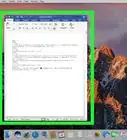
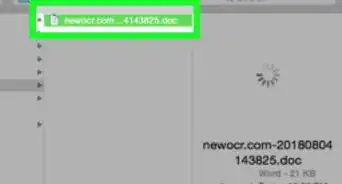
1Open your document in Word. You can either open your document within Word from the “File” tab or you can find your file in your file browser, right-click on it, then select “Open With…” and “Word.”
-
2Click the File tab. You'll find this either above your document space on the left side of the window (Windows) or along the top of your screen (Macs).
-
3Click Info. More options will open to the right.
-
4Click Convert. The document will convert to the newer version of Word. You might lose your layout, font, or features by converting.
- If you want to convert your document and save the original, click Save As from "File" and make sure you don't have the box checked next to "Maintain compatibility with previous versions of Word."[1]














References
About This Article

1. Open your document in Word.
2. Click on the File tab.
3. Click Info.
4. Click Convert.