This article was written by Nicole Levine, MFA. Nicole Levine is a Technology Writer and Editor for wikiHow. She has more than 20 years of experience creating technical documentation and leading support teams at major web hosting and software companies. Nicole also holds an MFA in Creative Writing from Portland State University and teaches composition, fiction-writing, and zine-making at various institutions.
This article has been viewed 82,813 times.
This wikiHow teaches you how to listen to music in iTunes without paying a dime. Although iTunes no longer allows you to download free music, you can get a free 90-day trial to Apple Music for unrestricted access to millions of songs, podcasts, and other goodies. Another free option is Beats 1 Radio, Apple Music's only 100% free radio station. And if you're not so interested in Apple Music, you can download free MP3s from a variety of websites and import them into iTunes.
Steps
Method 1
Method 1 of 3:Getting a Free Trial Subscription to Apple Music
-
1Open iTunes on your computer. If you're using a Mac, click the music note icon on the Dock, which is usually at the bottom of the screen. If you're using Windows, you'll find iTunes in the Start menu.
- Apple Music is a paid subscription service that lets you listen to millions of songs as often as you please. If you're not a subscriber, you can sign up for a free 90-day trial right in iTunes.
- See How to Join Apple Music to learn how to get a free trial of Apple Music when you're not using iTunes.
-
2Click For You. It's near the top-center part of iTunes. If you've never signed up for the trial, you'll see the option to sign up now.
-
3Click Try It Now. It's the blue button on the left side of the window. A list of subscription types will appear.
-
4Select a subscription plan. Although a price is listed, you won't have to pay anything until the trial period ends. If you cancel the trial before the final date of service, you will never be charged for Apple Music.
-
5Click Start Trial. A sign-in window will appear.
-
6Log in with your Apple ID. If you don't already have an Apple ID, tap Create New Apple ID to sign up now.
-
7Confirm your billing information. Although you won't be charged now, Apple Music needs a payment method so it can process the monthly subscription fee if you don't cancel before the trial's end.
-
8Click Join. You can now start listening to unlimited free music on Apple Music.
- Click Browse near the top-center part of the window to browse what's available.
- To search for something specific, type an artist, song, or album into the Search bar at the top of iTunes and press ↵ Enter or ⏎ Return.
-
9Cancel your trial subscription before the final date. Remember, you'll be charged the first day after the 90-day trial period ends. Set an alert to remind yourself to cancel before that date. Here's how to cancel your trial:[1]
- In iTunes, click the Account menu at the top.
- Click View My Account and sign in if prompted.
- Click Manage next to "Subscriptions."
- Click Edit next to your Apple Music subscription.
- Click Cancel Subscription and then Confirm.


Method 2
Method 2 of 3:Listening to Beats 1 Radio
-
1Open iTunes. If you're using a Mac, click the music note icon on the Dock, which is usually at the bottom of the screen. If you're using Windows, you'll find iTunes in the Start menu.
- Beats 1 Radio is a part of Apple Music. Though the majority of music available on Apple Music requires a subscription, Beats 1 Radio is completely free and includes a wide variety of scheduled radio shows.
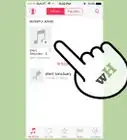
- Beats 1 Radio is also available (and free!) in the Music app that comes with your iPhone or iPad.
-
2Sign in to the iTunes store. If you aren’t signed in, click Account in the toolbar at the top of the window and select Sign In to do so now.
- If you see "Sign Out" instead of "Sign In," you're already signed in to Apple Music.
- If you don’t have an Apple ID, click Create New Apple ID and follow the on-screen instructions to create one now.
-
3Click the Radio tab. It's near the top-center part of iTunes. A list of Apple Music radio stations will appear.
-
4Click Beats1. It's at the top of the page to the right of "Radio." This displays the Beats 1 schedule. Information about what's playing right now appears at the top-left corner.
- Scroll down to see a list of upcoming shows and features.
-
5Click the show that's currently on-air. It's the option at the top-left corner of the list. Beats 1 Radio will start playing.


Method 3
Method 3 of 3:Finding Free Music to Download
-
1Visit a website that offers free downloadable mp3s. Though you can no longer download free music within iTunes, you can still download mp3s from other sites and listen to them in the app.
- BandCamp, DatPiff, Free Music Archive, and Jamendo are all music download sites that let you download safe, free mp3 files you can listen to in iTunes.
- Music blogs often offer free mp3s (high-quality music files at the smallest possible file size) of songs or albums they review. Search the web for genres of music you like and “music blog.” For example, search hip hop music blog to find bloggers who review hip hop music.
-
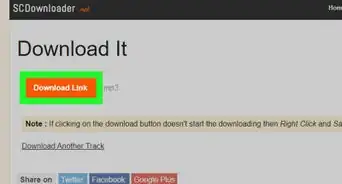
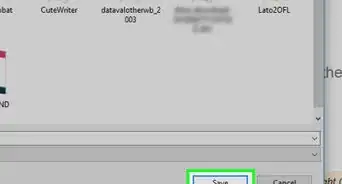
2Download the mp3 files to your computer. Most sites have a button or link that says “Download.” Once you click the link, you’ll be able to choose a folder on your computer to save the file. Choose a folder you’ll remember, as you’ll need it in a moment.
- Never download files from a site you don’t trust.
-
3Open iTunes. If you’re on a Mac, it’s the music note icon in the dock at the bottom of the screen. If you have Windows, click the Start menu (the Windows icon at the bottom left corner of the screen) and scroll down until you find iTunes.
- If you’re new to iTunes, check out How to Use iTunes for tips on getting started with the program.
-
4Select Music from the drop-down menu. The menu is near the top-left corner of iTunes.
-
5Click the Library tab. It’s at the top-enter area of iTunes.
-
6Click the File menu. It's at the top-left corner.
-
7Click Add to Library (Mac) or Add File to Library (PC). Your computer's file browser will appear.[2]
- If you're using Windows and want to add an entire folder of downloaded MP3s to your library, select Add Folder to Library instead.
-
8Browse to the folder that contains your music. The music you download from the web is usually saved to the Downloads folder.
-
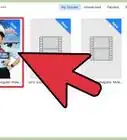
9Select the music you want to add and click Open. This adds the selected music to your library.
- If you're using a PC and want to add an entire folder, select the folder and click Select Folder instead.
-
10Double-click a song to listen. The music file will play immediately.
- Sometimes mp3s downloaded from the internet are not tagged with the proper artist and song titles. If you see “Unknown Artist” or “Unknown Album” instead of the proper information, right-click the file and select “Info” to enter that information yourself.



References
About This Article

1. Open iTunes.
2. Click Radio.
3. Click Beats 1.
4. Click the current program to start listening.