X
This article was written by Jack Lloyd. Jack Lloyd is a Technology Writer and Editor for wikiHow. He has over two years of experience writing and editing technology-related articles. He is technology enthusiast and an English teacher.
This article has been viewed 62,089 times.
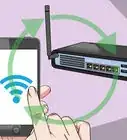
This wikiHow teaches you how to find and take advantage of free Wi-Fi hotspots, as well as how to set up your iPhone's or Android's personal hotspot for wireless browsing.
Steps
Method 1
Method 1 of 3:Finding Free Wi-Fi
Method 1
-
1Visit a location that offers free Wi-Fi. While you may need to fulfill a prerequisite (e.g., being a member or purchasing a beverage), you can usually obtain free Wi-Fi from the following types of business:
- Starbucks (and other coffee shops)
- Public libraries
- Fast food restaurants
- Malls
- Truck stops
-
2Use a Wi-Fi hotspot finder. There are several apps that you can download for the iPhone and Android that will display free, open network connections on a map using your location.[1]
- "WeFi" and "WiFi Map" are highly reviewed apps that are available for both iPhones and Androids.
Advertisement -
3Book hotel stays directly through hotel services. Most major hotels will include free Wi-Fi as a perk if you book your room through the hotel's official site or over the phone.[2]
- Some hotels still won't provide free Wi-Fi for guests who book through them, though you may be able to get free Wi-Fi by signing up for these hotels' loyalty programs.
-
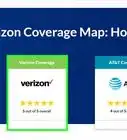
4Look for wireless hotspots from your cable provider. If you pay for cable, you may be able to use your login details to access free wireless hotspots around town.
- Cable providers known for this service include Time Warner Cable and Comcast.
- You can check out your provider's hotspot locations in your area by visiting their website.
-
5Search for unprotected networks. If you're in an urban area and you aren't able to visit a coffee shop or a restaurant, you may be able to find an unprotected--and, thus, accessible--network in your phone's or computer's available networks.
- Unprotected networks should be used carefully since any data accessed while using them may be stolen.
Advertisement


Method 2
Method 2 of 3:Using Your iPhone's Hotspot
Method 2
-
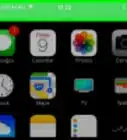
1Open your iPhone's Settings. This app is grey with gears on it. You'll likely find it on the Home Screen.
- While using the hotspot allows you to access the Internet from a computer in a pinch, using a hotspot for long periods of time may result in extra charges on your monthly mobile bill.
-
2Tap Personal Hotspot. It's an option near the top of the Settings page.
-
3
-
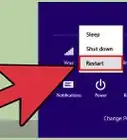
4Open your computer's Wi-Fi settings. You'll do so either by clicking the Wi-Fi symbol near the bottom-right corner of the screen (Windows), or by clicking the Wi-Fi symbol in the menu bar at the top of the screen (Mac).
-
5Click your phone's name. The name you'll see here is listed below the Personal Hotspot switch at the top of your iPhone's Personal Hotspot page.
- In most cases, the phone's name will say "[Your Name]'s iPhone".
-
6Enter the hotspot password. This password is listed on your iPhone, to the right of the "Wi-Fi Password" heading in the middle of the screen. After doing so, your computer will connect to your phone's data, allowing you to browse the Internet.Advertisement


Method 3
Method 3 of 3:Using Your Android's Hotspot
Method 3
-
1Open your Android's Settings. It's a grey, gear-shaped app that you'll find in the App Drawer.
- Use your hotspot sparingly, since using more than your monthly data limit will incur a fee.
-
2Tap More. This option is below the "Wireless & networks" heading near the top of the Settings page.
-
3Tap Tethering & portable hotspot. It's near the top of the screen.
-
4Tap Set up Wi-Fi hotspot. It's in the middle of the page.
-
5Set up your Android's hotspot. You'll need to enter the following information:[3]
- Network name - The name your hotspot will display in your computer's wireless manager.
- Security - Select a WPA2 option from this menu.
- Password - The login password you'll use.
-
6Tap Save. It's in the bottom-right corner of the Wi-Fi Hotspot window.
-
7Slide Portable Wi-Fi hotspot right to the "On" position. This option is near the middle of the page. Doing so will save your hotspot and make it available on your computer.
- On a Samsung device, this switch is at the top of the screen.
-
8Open your computer's Wi-Fi settings. You'll do so either by clicking the Wi-Fi symbol near the bottom-right corner of the screen (Windows), or by clicking the Wi-Fi symbol in the menu bar at the top of the screen (Mac).
-
9Click your phone's network name. This is the name you entered earlier.
-
10Enter the hotspot password. This is the password you added earlier. After entering this information, your computer should be using your phone's data as a wireless connection.Advertisement


Warnings
- Avoid connecting to private networks for which you don't have permission to access.Thanks!
Advertisement




References
About This Article
Advertisement