This article was co-authored by Darlene Antonelli, MA. Darlene Antonelli is a Technology Writer and Editor for wikiHow. Darlene has experience teaching college courses, writing technology-related articles, and working hands-on in the technology field. She earned an MA in Writing from Rowan University in 2012 and wrote her thesis on online communities and the personalities curated in such communities.
Once you've subscribed to Disney Plus, it's easy to start watching your favorite Disney programming on your Apple TV (4th generation or later). This wikiHow will teach you how to download the Disney Plus app onto your Apple TV.
Steps
-
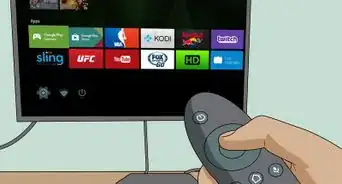
1Turn on your Apple TV. When you turn it on, you'll immediately see the home screen. If not, press and hold the Back arrow.
- If you have an older remote, press and hold the Menu button instead.
-
2
-
3Search for "Disney Plus." Select the magnifying glass icon to open the search box where you can type your search terms.
- Search results will display below your search as you type "Disney Plus." When you see the correct app appear, select it.[1]
-
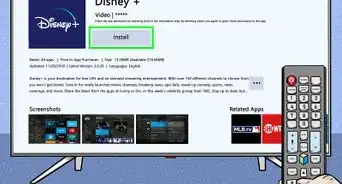
4Select Get. It's in the lower-left corner of the cover photo for the app.
-
5Navigate back to the home screen. Once the app is finished downloading and installing from the App Store, you'll find it on your home screen.
-
6Open Disney Plus and sign in. The app's icon looks like the Disney logo with a plus sign. You'll need to use the account that you used to sign up with Disney Plus so you can watch shows and movies.[2]






References
About This Article

1. Turn on your Apple TV.
2. Open the App Store.
3. Search for "Disney Plus."
4. Select Get.
5. Navigate back to the home screen.
6. Open Disney Plus and sign in.