This article was co-authored by Darlene Antonelli, MA. Darlene Antonelli is a Technology Writer and Editor for wikiHow. Darlene has experience teaching college courses, writing technology-related articles, and working hands-on in the technology field. She earned an MA in Writing from Rowan University in 2012 and wrote her thesis on online communities and the personalities curated in such communities.
This article has been viewed 2,886 times.
This wikiHow will teach you how to add a freeze frame in iMovie on Mac and iOS. This effect is often used to emphasize a frame and is easy to achieve with iMovie.
Steps
Method 1
Method 1 of 2:Using a Mac
-
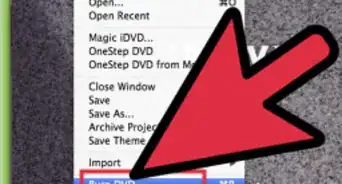
1Open your project in iMovie. You'll find the app icon for iMovie in the Dock or in the Applications folder in Finder then can go to File > Open. You can also navigate to the iMovie project file in Finder, right-click it, and select Open with > iMovie.
-
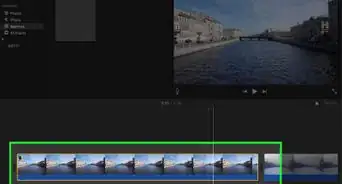
2Drag the timeline playhead to the frame you want to freeze. You'll see the clips in your iMovie at the bottom of the screen.
- If you want to add a clip to the project to freeze frame, you'll need to do it now. You can drag the image file to the timeline or go to Media > File > Import.
-
3Click the Modify tab. It's in the menu bar along the top of your screen.
-
4Click Add Freeze Frame. By default, the frame will freeze for 3 seconds, but you can change the length of the freeze frame effect by dragging and dropping the handles on either side of the clip.[1]
- This frozen clip will not play audio and if you want to delete a freeze frame, click to select the clip, then select Modify > Remove Freeze Frame.


Method 2
Method 2 of 2:Using iPhone or iPad
-
1Open your project in iMovie. This app icon looks like a star with a video camera inside and you'll be prompted to start a new project or open a previous one.
-
2Drag the timeline playhead to the frame you want to freeze. You'll see the clips in your iMovie at the bottom of the screen.
- If you want to add a clip, tap the plus sign in the top right corner of your screen.
-
3Tap the speedometer icon. You'll see it at the bottom of your screen and it'll open speed options.
-
4Tap Freeze. By default, the frame will freeze for 3 seconds, but you can change the length of the freeze frame effect by dragging and dropping the yellow handles on either side of the clip.[2]
- To delete a freeze frame, tap it to select it, then tap the trashcan icon in the lower right corner of your screen.









References
About This Article

1. Open your project in iMovie.
2. Drag the timeline playhead to the frame you want to freeze.
3. Click the Modify tab.
4. Click Add Freeze Frame.