X
wikiHow is a “wiki,” similar to Wikipedia, which means that many of our articles are co-written by multiple authors. To create this article, volunteer authors worked to edit and improve it over time.
This article has been viewed 35,062 times.
Learn more...
Freezing rows and columns in Microsoft Excel versions 2013, 2010, and 2007 can be helpful if you want to keep a section of your spreadsheet visible at all times while you move to and work in other sections of your document. Individual cells cannot be frozen and locked into place; however, you can freeze one or multiple rows and columns located at the very top and left sides of your spreadsheet, respectively.
Steps
-
1Select the row(s) or column(s) located just below or to the right of the row(s) or column(s) you want frozen. For example, if you want to freeze row 1, select row 2.
- When freezing a row(s) and column(s) at the same time, click on the one cell located just below and to the right of the row(s) and column(s) you want frozen. For example, if you want to freeze row 1 and column A, click on the cell located in B2.
-
2Click on the tab labeled “View” at the top of your Excel session.Advertisement
-
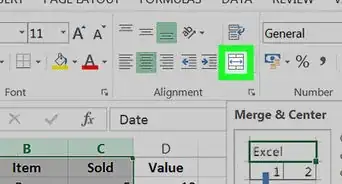
3Click on the small arrow next to “Freeze Panes” located in the Window group.
-
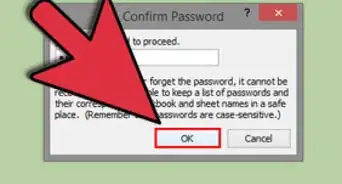
4Click on “Freeze Top Row” or “Freeze First Column,” based on your selection. The row(s) and/or column(s) you have selected will now be frozen in place.[1]
- Select “Freeze Panes” when freezing a row(s) and column(s) at the same time.
Advertisement
-a-Cell-in-Excel-Step-1-Version-2.jpg)
-a-Cell-in-Excel-Step-2-Version-2.jpg)
-a-Cell-in-Excel-Step-3-Version-2.jpg)
-a-Cell-in-Excel-Step-4-Version-2.jpg)
Warnings
- You will not have the ability to freeze rows, columns, or panes if your spreadsheet is protected or if you are editing a particular cell. To gain access to the freeze pane feature, remove the protection from your spreadsheet, or finish editing a cell.Thanks!
- If using Excel Starter, you will not have the ability to freeze and lock rows and columns as a result of feature limitations in this particular version of Excel. To gain access to the freeze pane feature, you will be required to work in an alternate version of Excel.Thanks!
Advertisement











About This Article
Advertisement