X
This article was written by Nicole Levine, MFA. Nicole Levine is a Technology Writer and Editor for wikiHow. She has more than 20 years of experience creating technical documentation and leading support teams at major web hosting and software companies. Nicole also holds an MFA in Creative Writing from Portland State University and teaches composition, fiction-writing, and zine-making at various institutions.
This article has been viewed 6,564 times.
This wikiHow teaches you how to delete a saved Wi-Fi password or network key from a Windows PC.
Steps
-
1Click the Windows button. It’s the Windows flag logo at the bottom-left corner of the screen. This is the menu that was once called the Start menu.
-
2Click Settings. If you don’t see this option, click the gear icon.
-
3Click Network and Internet.
-
4Click Manage Wi-Fi Settings. It’s near the top of the screen below “Advanced options.”
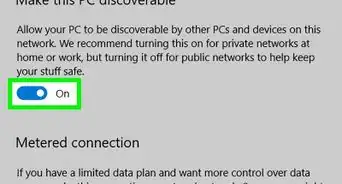
- If the Wi-Fi switch is not On (blue), click it to enable Wi-Fi now.
-
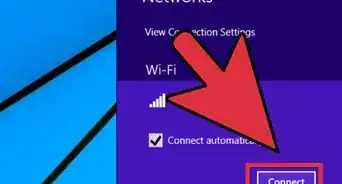
5Click the network you want to forget. Saved wireless networks are listed under “Manage known networks.” Two new buttons will appear below the network name.
-
6Click the Forget button. The network is now removed from the list of known networks. The next time you connect to this network, you’ll have to re-enter the Wi-Fi password or key.



About This Article

Nicole Levine, MFA
Tech Specialist
This article was written by Nicole Levine, MFA. Nicole Levine is a Technology Writer and Editor for wikiHow. She has more than 20 years of experience creating technical documentation and leading support teams at major web hosting and software companies. Nicole also holds an MFA in Creative Writing from Portland State University and teaches composition, fiction-writing, and zine-making at various institutions. This article has been viewed 6,564 times.
How helpful is this?
Co-authors: 3
Updated: August 10, 2021
Views: 6,564
Categories: Network Security
Article SummaryX
1. Click the Windows button.
2. Click Settings.
3. Click Network and Internet.
4. Click Manage Wi-Fi Settings.
5. Click the network.
6. Click Forget.
Did this summary help you?