This article was written by Jack Lloyd. Jack Lloyd is a Technology Writer and Editor for wikiHow. He has over two years of experience writing and editing technology-related articles. He is technology enthusiast and an English teacher.
This article has been viewed 1,881,517 times.
This wikiHow teaches you how to clear your computer's DNS cache, which is a collection of recently visited websites' addresses. Clearing the DNS cache will usually solve "Page Not Found" errors and other DNS-related errors.
Steps
Method 1
Method 1 of 2:On Windows


Method 2
Method 2 of 2:On Mac
-
1
-
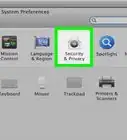
2Type terminal into Spotlight. Doing so will search your Mac for the Terminal application.
-
3
-
4Type the following code into Terminal:
- Then press ⏎ Return. This will run the DNS flush command.
sudo killall -HUP mDNSResponder;say DNS cache has been flushed
-
5Enter your Mac's password if prompted. It's the password you enter when logging into your Mac. Doing so will complete the DNS flush process.
- Terminal won't show your keystrokes as you type, but it will record them.
-
6Restart your web browser. You should now be able to connect to any DNS error-locked pages.


Community Q&A
-
QuestionIn Windows I entered the "ipconfig /flushdns" command and received the following: "The requested operation requires elevation." What does this mean?
 Community AnswerIt is because you don't have administrative access. Open your cmd using administrator access (usually known as "Run As Administrator").
 -
QuestionWhy do some websites work and others cannot be found?
 Community AnswerYour wifi firewall or the country may have some have censorship. Change your VPN to see if that works.
 -
QuestionHow can I flush a D.N.S. PC laptop or mobile device?Community AnswerOn Windows, open Command Prompt and after the prompt, without the quotes, type in "ipconfig/flushdns".
-
QuestionWhy can't I access Roblox? It says "This site can't be reached. The connection was reset."Community AnswerIt may be your internet connection. Unplug the device, wait 30 seconds and plug it back in.
-
QuestionI can't get into the website I want to because of the connection was reset. What should I do?
 Community AnswerTry to flushdns and maybe check your connection to the Internet. If not, check your firewall or browser, as both may be blocking your connection to the website.
 -
QuestionWhat do I do if I'm on mobile?Community AnswerIt is very hard to do it on mobile, as many companies won't let you use a command prompt due to the operating system and applications being proprietary software.
-
QuestionWhat if I'm getting a 502 gateway error NGINX/0.7.67 from any location?Community AnswerThat means that the NGINX web server is either not properly configured, or is not able to connect to the upstream server (which is normally the website).
Warnings
- Websites will take a bit longer to load the first time you access them after flushing the DNS cache.Thanks!


-Step-26-Version-2.webp)

About This Article
To flush your Windows computer’s DNS, start by clicking the Windows logo in the bottom left corner of your screen. Then, type “command prompt” into the search box, and select the Command Prompt app, which should be the top icon in the Start window. Next, enter "ipconfig /flushdns," and press Enter. Finish by restarting your web browser. For tips on how to flush your DNS on a Mac, read on!