X
wikiHow is a “wiki,” similar to Wikipedia, which means that many of our articles are co-written by multiple authors. To create this article, 19 people, some anonymous, worked to edit and improve it over time.
This article has been viewed 271,167 times.
Learn more...
One of the biggest problems in PC desktop computers is overheating which can lead to random shutdown. This can be caused by blocked heat sink on the central processing unit. Here's how to solve that problem.
Steps
-
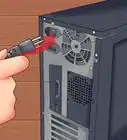
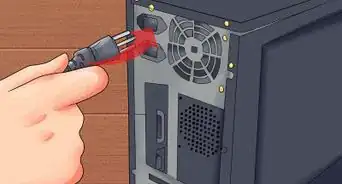
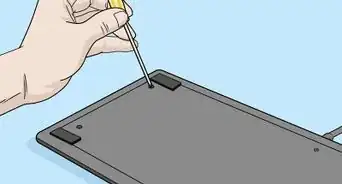
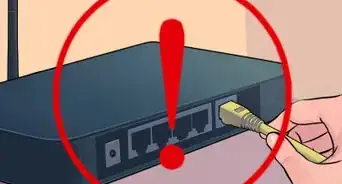
1Unplug your computer before opening the case. Wear a static wrist guard if possible, or touch the metal case before handling anything inside, to ground any static charge you may have.
-
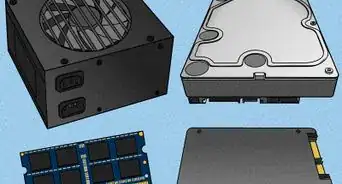
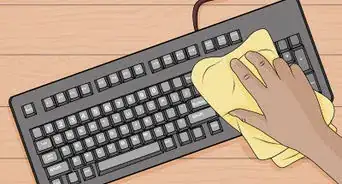
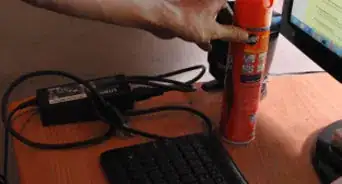
2Consider other options first. Overheating issues are also often caused by poor air circulation in the computer case. If you have space, adding another fan can help. Also, you should regularly open the case unplug all the cords and carefully take your computer system outside use a can of compressed air or an air compressor. A small vacuum is a good second choice but you have to be careful not to hit any internal components with it, and avoid touching the circuit boards with anything. Take your time and be very thorough with this step. Next take a cotton swab dabbed in some rubbing alcohol and go over the internal case components to get them very clean. You can go over the external case with a rag and a little bit of water. Allow your system 2 hours to dry out before turning it back on.Advertisement
-
3Remove the small CPU fan plug from the motherboard. Grasp the plastic end and pull carefully until it comes out. Don't pull it by the wires.
-
4Remove the CPU cooling fan. It may be held in place on the motherboard by four Phillips screws or a lock-down lever.
-
5Release the CPU. Often it is held in place by a small lever that lifts to release the processor.
-
6Take care not to drop the processor or pull it off if it's stuck. Dropping the processor will likely damage it. Alternatively, it may be stuck to the heat sink by thermal paste. Try to separate them. A credit card-type card can be useful for this step, but don't damage the CPU trying to pry them apart.
-
7Clean out the heat sink. Blast compressed air directly on the heat sink. It only takes a few good squirts to clean a blockage. If it's persistent, allow a few seconds before repeating.
-
8Carefully wipe off any residual thermal paste. Use a clean cotton bud or paper towel. A little rubbing alcohol may help, but too much could cause damage.
-
9Replace the CPU in its socket.
-
10Apply a thin layer of thermal paste to the top of the CPU. It only takes a small amount. Too much can cause overheating problems all over again.
-
11Replace the heat sink. Clip the clip back in. Secure the fan back on. Plug it back into the motherboard.
-
12Tidy up the case. Make sure stray wires are secured away from fans, then put the cover back in place.
-
13Test your computer to make sure everything works.Advertisement


Community Q&A
-
QuestionWhat is thermal paste, and can I use something else if I do not have access to it?
 Community AnswerIt is not a good idea to use anything but real thermal paste to repair your computer, as anything else can cause damage to your computer.
 -
QuestionHow can I open my HP envy 23 all in one computer?
 Community AnswerThe back of your computer should be able to be unscrewed easily.
 -
QuestionWhat can I do to stop my computer from overheating when I have already opened it and cleaned the fan?
 Community AnswerTry keeping it in cooler place with its case open. For example, in an air-conditioned room.
Warnings
- Always turn off and unplug your computer before opening the case.Thanks!
- Watch out for sharp edges.Thanks!
- Be sure that both you and your tools are demagnetized.Thanks!
- Be careful around the computer and don't drop anything on or in it.Thanks!
Advertisement
Things You'll Need
- A can of compressed air
- Clean cleaning wipes, cotton buds, or sturdy paper towels
- Rubbing alcohol (optional)
- Small screwdriver
- Medium screwdriver
- Heat sink thermal paste (available from most stores that build and sell computers)



About This Article
Advertisement