X
wikiHow is a “wiki,” similar to Wikipedia, which means that many of our articles are co-written by multiple authors. To create this article, volunteer authors worked to edit and improve it over time.
The wikiHow Tech Team also followed the article's instructions and verified that they work.
This article has been viewed 7,284 times.
Learn more...
If you aren’t actively using an app, your Android system will put it into standby mode. This will restrict the app from running in the background or taking any actions behind the scenes. When you open the app again, it will be removed from standby mode. This wikiHow will help you to find the list of inactive apps (apps that are currently in Standby mode) on your device!
Steps
-
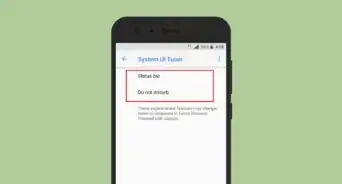
1Enable the Developer options in your Android device. To activate this feature navigate to Settings > System > About phone and tap on the Build number seven times. If you have already enabled it, move to the next step.
-
2Open your Settings. It’s the gear icon typically found on the home screen or in the app drawer. You can also use the notification panel shortcut to open it.
-
3Go to the System settings. Scroll down the bottom and tap on System. In some phones, you need to locate the About phone section to find these settings.
-
4Tap on Developer options. It's located between the Backup and System update options.
-
5Scroll down to the “Apps” header and tap on Inactive apps. You will see a list of apps come up.
-
6Find the inactive apps. You will see the “Inactivate” label under the apps which are currently in standby mode. This means that the app is completely shut down until you open it again. You can manually change this state this by tapping on an app. Finished!