X
This article was written by Nicole Levine, MFA. Nicole Levine is a Technology Writer and Editor for wikiHow. She has more than 20 years of experience creating technical documentation and leading support teams at major web hosting and software companies. Nicole also holds an MFA in Creative Writing from Portland State University and teaches composition, fiction-writing, and zine-making at various institutions.
This article has been viewed 35,868 times.
This wikiHow teaches you how to filter incoming email to different folders in Microsoft Outlook. Messages can be filtered by email address (sender or receiver), words, and phrases.
Steps
Method 1
Method 1 of 2:Filtering by Email Address
Method 1
-
1Open Microsoft Outlook. It’s usually in the Microsoft Office folder, which you’ll find in the All Apps area of the Start menu.
-
2Click a message sent to or from an address you want to filter. This opens the message in the right panel.
- For example, if you want to filter all mail sent from one email address, click an email from that sender.
- If you want to filter messages sent to one of your email addresses, click a message addressed to that address.
Advertisement -
3Click the Home tab. It’s near the top-left corner of the screen.
-
4Click Rules. It’s in the row of icons near the top of the screen, toward the center.
-
5Click Always Move Messages From <sender> or Always Move Messages To <address>. A list of folders on your account will appear.
-
6Select the folder you to which you want these messages filtered. If you don’t see a folder you want to use, click New to create one, then select it.
-
7Click OK. Future email sent to or from the email address you selected will be moved to the selected folder upon receipt.Advertisement


Method 2
Method 2 of 2:Filtering by Words
Method 2
-
1Open Microsoft Outlook. It’s usually in the Microsoft Office folder, which you’ll find in the All Apps area of the Start menu.
-
2Click a message containing a word or phrase you want to filter. The word or phrase can be anywhere in the message, such as the subject, body, or header.
-
3Click the Home tab. It’s near the top-left corner of the screen.
-
4Click Rules. It’s in the row of icons near the top of the screen, toward the center.
-
5Click Manage Rules & Alerts.[1]
-
6Click New Rule. It’s at the top-left corner of the window.
-
7Select Move messages with specific words in the subject to a folder. Even if you don’t want to filter only words in the subject, select this option for now.
-
8Click Next. A list of options and check boxes will appear.
-
9Remove the check mark from “with specific words in the subject.” You can skip this step if you only want the filter to look at words in the subject line.
-
10Select the parts of the message where the filter will look for the words. Choose at least one of these options:
-
with specific words in the subject or body
- Example: You want to filter messages with the word “coupon” in either the subject or the body to a folder called Coupons.
-
with specific words in the message header
- Example: You want messages sent through a certain mail server to go straight to the trash.
-
with specific words in the recipient’s address
- Example: You want mail sent to support@yourdomain.com to go to a folder called Support.
-
with specific words in the sender’s address
- Example: You want messages sent from anyone with the word “wiki” in their email address to a folder called Wiki.
-
with specific words in the subject or body
-
11Click Next.
-
12Type the word or phrase and click Add. You can add multiple words and phrases if you wish.
-
13Click OK. This brings you back to the list of filter conditions.
-
14Click the specified link. It’s in the box at the bottom of the window as a part of the phrase “specified folder.” A list of folders on your email account will appear.
-
15Select the folder you to which you want these messages filtered. If you don’t see a folder you want to use, click New to create one, then select it.
-
16Click OK.
-
17Click Next. Now you’ll see a list of actions Outlook can take based on the filter you created.
-
18Check the boxes next to what you’d like to happen. Make sure “move it to the specified folder” (the second option) is checked so the message lands in its folder. The others are optional, but can be helpful based on your needs.[2]
-
19Click Next.
-
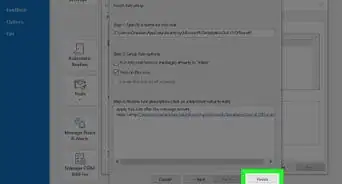
20Enter a name for the filter. This is how it will appear in your list.
-
21Check the box next to “Turn on this rule.” If you’d like, you can also check “Run this now” so the filter will scan the mail you’ve already received.
-
22Click Finish. Future incoming messages will now be sorted based on the word or phrase you entered.Advertisement



References
About This Article

Nicole Levine, MFA
Tech Specialist
This article was written by Nicole Levine, MFA. Nicole Levine is a Technology Writer and Editor for wikiHow. She has more than 20 years of experience creating technical documentation and leading support teams at major web hosting and software companies. Nicole also holds an MFA in Creative Writing from Portland State University and teaches composition, fiction-writing, and zine-making at various institutions. This article has been viewed 35,868 times.
How helpful is this?
Co-authors: 1
Updated: August 5, 2019
Views: 35,868
Categories: Outlook
Advertisement