This article was written by Darlene Antonelli, MA. Darlene Antonelli is a Technology Writer and Editor for wikiHow. Darlene has experience teaching college courses, writing technology-related articles, and working hands-on in the technology field. She earned an MA in Writing from Rowan University in 2012 and wrote her thesis on online communities and the personalities curated in such communities.
This article has been viewed 1,668 times.
This wikiHow teaches you how to extract images from PDFs. If the PDF was created from a text document on a computer, you can use the free Adobe Acrobat Reader program to extract the image easily; if the PDF was scanned into the computer from a physical document or it has copy-protection, however, you'll need to use a screen-snipping tool.
Need help creating, merging, or converting PDF files? Try wikiHow's PDF Toolkit, a free and easy-to-use custom tool to help you be more productive with your documents.
Steps
Method 1
Method 1 of 3:Using Adobe Acrobat Reader
-
1Open your PDF in Acrobat Reader. You can open the PDF in Acrobat Reader by clicking File > Open or right-clicking the file in a file browser and selecting Open With > Adobe Acrobat Reader.
- Adobe Acrobat Reader DC is a free PDF viewer from Adobe that works with both Windows and Mac. If the PDF you intend to copy from was created from a text document on a computer, you may be able to select and copy the image in the PDF from here.
- If the PDF you want to copy from was scanned, you won't be able to use this method.
- If you don't have Adobe Reader yet, you can download and install it for free.
-
2Select the image in the document. Click the image to select it and it should highlight in a box to show it is selected. If it doesn't, you'll need to click Edit PDF and try again.Advertisement
-
3Right-click the image you want to export. A menu will pop-up at your cursor.
-
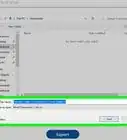
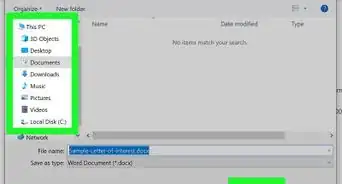
4Click Save Image As. Your file browser will pop-up for you to name and choose a location for your saved image.
-
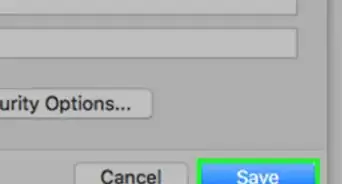
5Click Save. The window will close and that image will be saved to the location you picked in the previous step.Advertisement


Method 2
Method 2 of 3:Using the Windows Snipping Tool
-
1Open your PDF. You can open the PDF in any program and any window, as long as the image you want to save is visible.
-
2Open Snip & Sketch. You can find this snipping tool by searching or in your Start Menu on Windows 10, 8.1, and 7.
-
3Click the drop-down arrow next to "Mode." This will drop-down all the different modes of snips you can use.
-
4Select Rectangular.
-
5Use your mouse to draw a rectangle around the image. This captures a screenshot of the photo.
- If the image you want is not clearly visible, you can press Esc to stop the screen-snipping process, move your windows, and try again.
-
6Click the floppy disk to save the screenshot. You'll see this in the right corner of the program window. Your file browser will open and you can name and choose a location to save the snipped image.Advertisement


Method 3
Method 3 of 3:Using Preview on a Mac
-
1Open Preview. You'll find this application in your Dock or Application folder.
-
2Open your PDF. Go to File > Open and pick your PDF from the file browser.
-
3
-
4
-
5Click Smart Lasso. This is usually the first icon in the drop-down menu.
-
6Trace the edge of the image you want to select. If you don't want to trace the image, you can click each edge to create a straight line between the two points.
- Make sure you connect the lasso to the beginning of the trace to select the image.
-
7Click Edit. You'll find this at the top of your screen.
-
8Click Copy. You can copy and paste this image to save it in its own document.
- You can paste the image into its own file by pressing Cmd + N to open a new document and Cmd + V to paste it. Then save the image by clicking File > Save in the menu at the top of your screen.[1]
Advertisement


References
About This Article

1. Open your PDF in Acrobat Reader.
2. Select the image in the document.
3. Right-click the image you want to export.
4. Click Save Image As.
5. Click Save.