X
This article was written by Jack Lloyd. Jack Lloyd is a Technology Writer and Editor for wikiHow. He has over two years of experience writing and editing technology-related articles. He is technology enthusiast and an English teacher.
The wikiHow Tech Team also followed the article's instructions and verified that they work.
This article has been viewed 294,046 times.
This wikiHow teaches you how to erase a readable and writable CD—or "CD-RW"—using your Windows or Mac computer. You cannot erase a read-only CD (CD-R).
Steps
Method 1
Method 1 of 2:On Windows
Method 1
-
1Insert the CD into your computer. It should go into your computer's disc tray label side-up.
-
2Advertisement
-
3
-
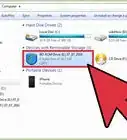
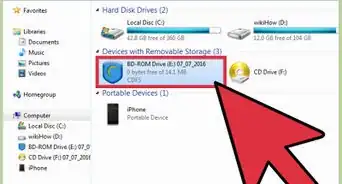
4Click This PC. This computer-shaped option is on the left side of the File Explorer window, though you may have to scroll up or down in the left-hand sidebar to see it.
-
5Select the CD drive. Click the CD drive icon, which looks like a grey hard drive with a CD behind it.
-
6Click the Manage tab. It's in the upper-left side of the window. A toolbar will appear below it.
-
7Click Erase this disc. This option is in the "Media" section of the Manage toolbar. A window will appear.
-
8Click Next. It's in the bottom-right corner of the window. Doing so will prompt your CD to begin erasing.
-
9Wait for the CD to finish erasing. You can track the erasing progress by watching the bar in the middle of the window.
-
10Click Finish when prompted. It's at the bottom of the window. Your CD has now been erased.Advertisement


Method 2
Method 2 of 2:On Mac
Method 2
-
1Insert the CD into your Mac's external CD drive. Unless you have a pre-2012 Mac that has a built-in CD drive, you will need to use an external CD reader to erase your CD.
-
2Click Go. It's a menu item in the upper-left side of your Mac's screen. A drop-down menu will appear.
- If you don't see Go in the menu bar, click the Finder or the desktop to make it appear.
-
3Click Utilities. This option is near the bottom of the drop-down menu. Doing so opens a folder.
-
4Double-click Disk Utility. You'll find this grey, hard drive-shaped app in the Utilities folder.
-
5Select your CD's name. Click the CD's name on the left side of the window under the "Devices" heading.
-
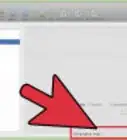
6Click the Erase tab. It's at the top of the Disk Utility window. The CD's properties window will open.
-
7Click Completely. This option lets you completely erase the CD.
-
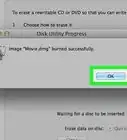
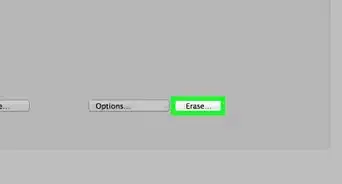
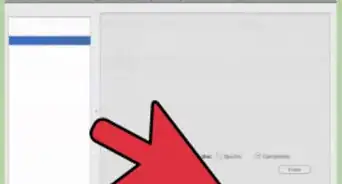
8Click Erase. Doing so begins erasing your CD. This may take several minutes depending on how large the CD is.
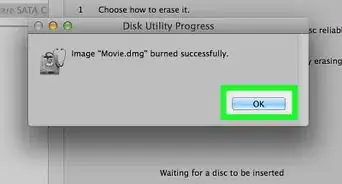
- Once the process is complete, you'll receive a pop-up that says "You have inserted a blank CD", signifying that the CD is erased.
Advertisement


Community Q&A
-
QuestionWhat if my CD was formatted to be compatible with a CD player? I can't delete the data on the disc, and I tried the steps above, but it won't work.
 Community AnswerWhen you "finalize" the CD to use in other players, it is no longer re-writable.
 -
QuestionCan I rewrite on a CD that I purchased with content on it?
 Community AnswerDepends on what type of CD you have purchased. CD-R can't be rewritten while CD-RW can be rewritten.
 -
QuestionMy "erase this disc" prompt has turned gray. How can I fix this?
 Community AnswerIf you have a CD-R, it doesn't work. You need a CD-RW in order for this to be re-written.
 -
QuestionHow do I do this using Windows 7?Community AnswerDouble-click My Computer, right-click the CD icon, then click Format.
-
QuestionHow do I identify whether it is a CD-R or CD-RW?
 Aditya TelangCommunity AnswerAll CD/DVDs will have it printed on the label. If your label is damaged or not visible, put the CD/DVD in the DVD drive. Right-click on the CD/DVD, then click Properties. You will see what kind of CD/DVD it is.
 -
QuestionWhat do I do if the option to erase my CD-RW disc is grayed out?Aditya TelangCommunity AnswerIn that case, the CD is probably not CD-RW. Check on the CD specifically for "RW". If it's there, try to format your CD-RW from the system. It will delete data from the CD and make room for burning. If that does not solve your issue, try using a third-party DVD/CD burning software to format or delete data. If that also does not solve your concern, then it is time to replace the CD-RW.
-
QuestionDoes this work with movie DVD-Rs that I have created?Aditya TelangCommunity AnswerNo. A DVD-R can be used to burn data just once. After that, it cannot be deleted or re-written.
-
QuestionIs it possible to erase a CD-RW or DVD-RW?
 DenneiskTop AnswererCD-RW and DVD-RW are both erasable and rewritable. You can erase and rewrite them as many times as you want until they wear out.
Warnings
- CD-RWs will deteriorate over time as they are erased and rewritten. Check the packaging to find the CDs' estimated lifespan.Thanks!
Advertisement
About This Article
Article SummaryX
1. Insert the CD.
2. Open File Explorer.
3. Click This PC.
4. Click your optical disc drive.
5. Click Manage.
6. Press Erase this disc on the VCR.
7. Click Next.
8. Click Finish.
Did this summary help you?
Advertisement