This article was written by Darlene Antonelli, MA. Darlene Antonelli is a Technology Writer and Editor for wikiHow. Darlene has experience teaching college courses, writing technology-related articles, and working hands-on in the technology field. She earned an MA in Writing from Rowan University in 2012 and wrote her thesis on online communities and the personalities curated in such communities.
By default, Safari should automatically prevent websites from showing you pop-ups, but what if you want to see them? What if the site you're visiting uses pop-ups for something other than advertisements? This wikiHow will show you how to enable pop-ups in Safari on your Mac, phone, or tablet.
Steps
Method 1
Method 1 of 2:Mac
-
1Open Safari. This app icon looks like a compass with a red dial that you can find on your Dock.
- You'll be able to choose if you want to allow all pop-up windows or those from a specific site. If you want to allow pop-ups from a specific site, go there before continuing.
-
2Click the Safari menu. This menu item is in the top-left corner of the screen next to the Apple logo. A drop-down menu will appear.Advertisement
-
3Click Preferences…. It's near the top of the drop-down menu and prompts a window to open.
-
4Click the Websites tab. This is the globe icon at the top of the window.
-
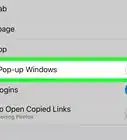
5Click Pop-up Windows. It's at the bottom in the menu that's in the left panel.[1]
-
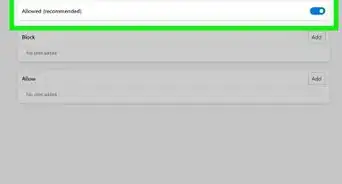
6Select Allow from the "When visiting other websites" menu. This menu is at the bottom-right corner of the screen. When selecting this option, all pop-ups will be allowed through Safari.
- If you just want to enable pop-ups for one website, click the menu to the right of its name in the "Currently Open Websites" panel and select Allow.[2]
- Select Block to re-enable the feature to block pop-ups.
Advertisement


Method 2
Method 2 of 2:iPhone or iPad
-
1Open Settings on your iPhone or iPad. This is the gray gear icon on your home screen or in your App Library.
-
2Tap Safari. You'll find it next to the Safari app icon (which looks like a compass with a red dial) in the fifth grouping of menu options. You might have to scroll a bit to find it.
-
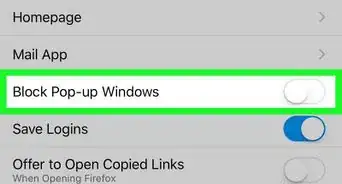
3Tap the switch next to "Block Pop-ups" to toggle it to the Off position . It's in the "GENERAL" section. Turning this switch off (it'll appear grey instead of green) allows all pop-ups through Safari.
- Tap this switch again to toggle it on and block future pop-ups.
Advertisement





References
About This Article

1. Open Safari.
2. Click the Safari menu and click Preferences.
3. Click the Websites tab.
4. Click Pop-up Windows.
5. Select Allow from the "When visiting other websites" menu.