This article was co-authored by wikiHow Staff. Our trained team of editors and researchers validate articles for accuracy and comprehensiveness. wikiHow's Content Management Team carefully monitors the work from our editorial staff to ensure that each article is backed by trusted research and meets our high quality standards.
The wikiHow Tech Team also followed the article's instructions and verified that they work.
This article has been viewed 8,925 times.
Learn more...
This wikiHow teaches you how to enable Do Not Disturb mode on Alexa so you won't get alerts from calls, messages or notifications and prevent Drop-Ins. You can enable Do Not Disturb (DND) mode using voice commands with Alexa, or you can also schedule Do Not Disturb mode to be active for a certain day or time using the Alexa app.
Steps
Method 1
Method 1 of 2:Activating DND Mode Using Voice Commands
-
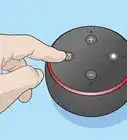
1Say, "Alexa". Say the wake command to wake Alexa and she will begin listening for your next command.
- The default wake command is "Alexa," but if you've changed it to "Echo," "Amazon," or some other command, then use the wake command you previously set.
-
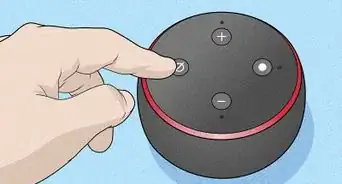
2Ask Alexa not to disturb you. You can simply say, "Alexa, don't disturb me," or "Alexa, turn on Do Not Disturb." Alexa will respond, "I won't disturb you," and you will hear a brief chime. You will not receive calls, messages, notifications or Drop-Ins while Do Not Disturb mode is active.
- If you never wish to receive Alexa alerts, you can simply leave Do Not Disturb Mode active for as long as you want.
-
3Ask Alexa to turn off DND mode. You can say, "Alexa, turn off Do Not Disturb." You will start receiving calls, messages, notifications, and Drop-Ins again.


Method 2
Method 2 of 2:Scheduling DND mode Using the Alexa App
-
1Open the Alexa app. It's the light-blue app that has a speech bubble with a white outline.
- If you haven't done so already, you can download the Alexa app on your Android phone from the Google Play Store or on your iPhone from the App Store and log in with the email address and password for your Amazon account.
-
2Tap ☰. It's the three-lined icon in the top-left corner. This opens a menu of options of the left-side of the screen.
-
3Tap Settings. It's near the bottom of the menu.
-
4Select your device. If you haven't changed the name yourself it should be named something like, "Echo" or "Echo Dot."
-
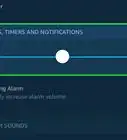
5Scroll down to the Do Not Disturb heading and tap "Scheduled." Under this heading, you can also toggle Do Not Disturb on or off.
-
6Tap the switch for "Scheduled" to the 'ON' position. This will toggle the schedule and ask you to create a daily schedule.
-
7Tap Edit. It's a large, blue button.
-
8Select the time period to keep Do Not Disturb on. Use the drop-down menus to select the time period during which you do not want to be disturbed. Make sure you select AM or PM.
-
9Tap Save Changes. Your Do Not Disturb schedule is now active.






About This Article

*"Alexa, don't disturb me." Activates Do Not Disturb mode. Alerts are disabled.