This article was co-authored by wikiHow Staff. Our trained team of editors and researchers validate articles for accuracy and comprehensiveness. wikiHow's Content Management Team carefully monitors the work from our editorial staff to ensure that each article is backed by trusted research and meets our high quality standards.
The wikiHow Tech Team also followed the article's instructions and verified that they work.
This article has been viewed 4,188 times.
Learn more...
This wikiHow teaches you how to enable Brief Mode on Alexa-enabled devices such as the Amazon Echo. Brief Mode will cause Alexa to talk less in response to certain commands or in some cases just make a chime sound to signal that she heard you. Brief Mode is currently an experimental feature that is not available to all users yet. The only way to know if you have access to the feature is to look and see if it is in your settings. Use the Alexa app to enable this feature if it's available for your Echo device.
Steps
-
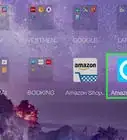
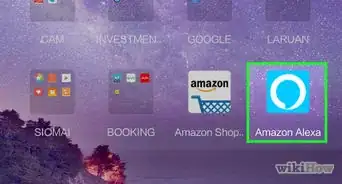
1Open the Alexa app. The icon is a blue speech bubble with a white outline.
- If you haven't already, download the Alexa app for Android on the Google Play Store or for iPhone on the App Store, then log in to the Amazon account you used to set up your Echo device.
-
2Tap ☰. Tap the three-lined button in the top-left corner. This opens the main menu on the left side of the screen.Advertisement
-
3Tap Settings. It's the third selection from the bottom.
-
4Scroll to the bottom and tap Alexa Voice Responses. If you don't see this option, you don't have access to this experimental feature yet. This feature is likely to be available to all users fairly soon.[1]
-
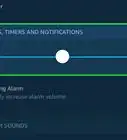
5Toggle the switch for Brief Mode. Tap the switch next to "Brief Mode" to toggle it to the ON position. When the switch is gray it is disabled, and when the switch is blue it is enabled.Advertisement



About This Article

1. Open the Alexa app.
2. Tap ☰
3. Tap Settings.
4. Scroll down and tap Alexa Voice Responses.
5. Toggle the switch for Brief Mode ON.