This article was written by Darlene Antonelli, MA. Darlene Antonelli is a Technology Writer and Editor for wikiHow. Darlene has experience teaching college courses, writing technology-related articles, and working hands-on in the technology field. She earned an MA in Writing from Rowan University in 2012 and wrote her thesis on online communities and the personalities curated in such communities.
This article has been viewed 6,768 times.
This wikiHow will teach you how to empty the Google Drive trash on your computer, Android, and iPhone or iPad. Deleting the trash might take a few minutes to sync across platforms depending on your internet connection and how much you're deleting. Anything you delete from the trash will be permanently deleted from your Drive.
Steps
Method 1
Method 1 of 3:Using a Computer
-
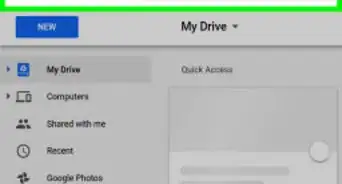
1Go to https://drive.google.com/drive/my-drive and log in. You can use any web browser on your computer to empty your Google Drive trash.
- If you have Backup and Sync setup for Mac or Windows, every file on your computer is tied with Google Drive, so emptying your trash in your file manager (Finder for Mac and File Explorer for Windows) will also delete any files in the trash in your Google Drive.
-
2Click Trash. You'll see this in the vertical menu on the left side of the page next to an icon of a trash can.
-
3
-
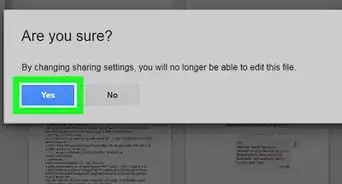
4Click Empty trash. A window will pop-up warning you that everything will be deleted. Click Empty Trash to confirm your action and continue.[1]


Method 2
Method 2 of 3:Using an Android
-
1Open Google Drive. This app icon looks like a red, green, blue, and yellow triangle that you'll find on one of your Home screens, in the app drawer, or by searching.
- You can only delete individual files in the Android mobile app. If you want to delete everything in your trashcan, you'll need to use a computer and go to https://drive.google.com.
-
2Tap ☰. This three-line menu icon is in the top left corner of your screen.
-
3Tap Trash. You'll find this next to an icon of a trash can.
-
4Tap ⋮ next to the file you want to delete. A menu will slide up from the bottom of your screen.
-
5Tap Delete Forever. This is the last option in the menu next to an icon of a trash can with an "x" inside. Tap Delete forever when prompted.


Method 3
Method 3 of 3:Using an iPhone or iPad
-
1Open Google Drive. This app icon looks like a red, green, blue, and yellow triangle that you'll find on one of your Home screens.
-
2Tap ☰. This three-line menu icon is in the top left corner of your screen.
-
3Tap Trash. You'll find this next to an icon of a trash can.
-
4Tap ⋮. You'll find the three-dot menu icon in the top right corner of your screen.
-
5Tap Empty trash. If you want to delete a specific file, tap the three-dot menu icon next to the file's name and tap Delete forever.[2]





References
About This Article

1. Go to https://drive.google.com/drive/my-drive and log in.
2. Click Trash.
3. Click the arrow next to "Trash."
4. Click Empty trash.