This article was written by Darlene Antonelli, MA. Darlene Antonelli is a Technology Writer and Editor for wikiHow. Darlene has experience teaching college courses, writing technology-related articles, and working hands-on in the technology field. She earned an MA in Writing from Rowan University in 2012 and wrote her thesis on online communities and the personalities curated in such communities.
This article has been viewed 6,487 times.
If you're using Twitch on a computer (using the Twitch.tv website or desktop app), you can update all aspects of your profile, including your personal photo, bio, and profile banner. If you're using the mobile app on a phone or tablet, you'll only be able to edit your bio. This wikiHow teaches you how to update your Twitch profile using the website, desktop, and mobile app.
Steps
Method 1
Method 1 of 2:Using the Twitch Website on a Computer or Mobile
-
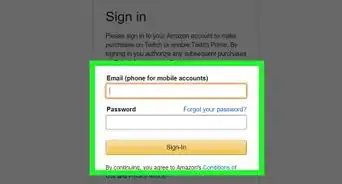
1Login to https://twitch.tv in your web browser. This method works on computers, phones, and tablets. If you're using a phone or tablet, you will be redirected to the mobile site and need to switch to the desktop version. Here's how:
- Chrome: Tap the three-dot menu at the top right of the website below the address bar, and then tap Switch to Desktop Mode.
- Safari: Tap the square with an arrow at the bottom to open the sharing menu, swipe across icons, and then tap Request Desktop Site.
- You can also use the desktop app since the process is identical. This app icon looks like a white chat bubble on a purple background, and you can find it in either your Start menu or Applications folder.
-
2Click your profile icon. You'll see this in the top right of the site.Advertisement
-
3Click Settings. This is near the bottom of the drop-down menu that appeared when you clicked your profile icon.
-
4Edit your profile. You default to the Profile section of settings, so you will see all the changes you can make to your profile here.
- Click Add Profile Picture to change your icon. This file must be JPEG, PNG, or GIF and cannot exceed 10MB. Your file browser will open for you to choose your picture. After you double-click on an image file to open it, you'll see another window pop up for you to zoom on your file if you want. Click Save to finish.
- Click Update under "Profile Banner" to change your profile banner. Accepted file formats are JPEG, PNG, GIF (recommended 1200x480, max 10MB).
- You can change your username if you see a pencil icon. If not, there should be a message under your listed username that tells you when you can change it.
- You can edit the capitalization of your username for your display name. For example, your username may be fluffycat, but you can have the display name set to show FluffyCat.
- Click in the box next to "Bio" if you want to edit your bio. You have up to 300 characters to use in this box.
-
5Click Save Changes when you're finished.Advertisement


Method 2
Method 2 of 2:Using the Mobile App
-
1Open Twitch. This app icon looks like a white chat bubble on a purple background. You can find this on either your home screen, in the apps drawer, or by searching.
- While you are not able to edit as much of your profile from the mobile app as the desktop app or website, you can edit your bio.
-
2Tap your profile icon. You'll see this in the upper right corner of your screen.
-
3Tap the settings icon. This icon looks like a gear that you'll see this in the upper right corner of your screen.
-
4Tap Edit Bio. This is usually the last option on the list.
-
5Tap in the text field and edit your bio. When you tap in the text field, your keyboard will slide up from the bottom of the screen.
-
6Tap Save. When you're done, save your work. You'll be redirected to your channel page and you'll see a pop-up notification along the bottom of your screen that your changes were saved.Advertisement









About This Article

1. Login to your Twitch account at https://twitch.tv.
2. Click your profile icon.
3. Click Settings.
4. Edit your profile by changing either your profile icon, profile banner, username, display name, or bio.
5. Click Save Changes if you've changed your username, display name, or bio.