This article was co-authored by Darlene Antonelli, MA. Darlene Antonelli is a Technology Writer and Editor for wikiHow. Darlene has experience teaching college courses, writing technology-related articles, and working hands-on in the technology field. She earned an MA in Writing from Rowan University in 2012 and wrote her thesis on online communities and the personalities curated in such communities.
Do you want to change your display name, profile URL, picture, or other profile information? This wikiHow teaches you how to edit your SoundCloud profile using a web browser and the mobile app. The mobile app does not let you edit your profile URL or add links, so the easiest method is using a web browser.
Steps
Method 1
Method 1 of 2:Using a Web Browser
-
1Go to https://soundcloud.com and sign in. You can use any web browser to log into your SoundCloud account and edit your profile.
- Since you're able to edit more information in your SoundCloud account using a web browser (like your profile URL), this method is probably the easiest to use.
-
2Click your name. You'll see it in the top right corner of the web browser and a menu will drop down.
-
3Click Profile. It's usually the first listing in the menu and will bring you to your public profile.
-
4Click Edit. This is next to a pencil icon on the right side of the page under your cover photo.
-
5Edit your profile as needed. You can change your display name, profile URL, your real first and last names, city, country, bio, and profile photo.
- Click Add link or Add support link to add up to 10 links to your profile. You can only add PayPal, Cash app, Venmo, Bandcamp, Shopify, Kickstarter, Patreon, and Gofundme links to the support link section.
- The bio section allows up to 4,000 characters and does not allow HTML formatting.
-
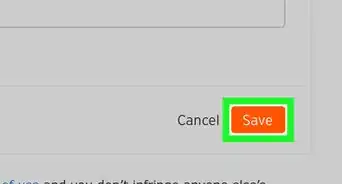
6Click Save changes. You'll see this in the bottom right corner and your changes will be saved.[1]


Method 2
Method 2 of 2:Using the Mobile App
-
1Open SoundCloud. The icon looks like an orange box with a white cloud inside. You can find it on one of your Home screens, in the app drawer, or by searching.
- Since you are limited in what you can edit on your public profile with the mobile app, using a web browser might be easier for you.
-
2Tap the library icon. It looks like two upright lines and one tilted line that is usually the fourth icon from the left at the bottom of your screen.
-
3Tap your profile icon. It's in the upper right corner of your screen.
- If you don't see it, tap ••• > Your profile.
-
4
-
5Edit your profile as needed. You can change your display name, city, country, bio, and profile photo.
- The bio section allows up to 4,000 characters and does not allow HTML formatting.[2]
-
6








References
About This Article

1. Go to https://soundcloud.com and sign in.
2. Click your name.
3. Click Profile.
4. Click Edit.
5. Edit your profile as needed.
6. Click Save changes.