This article was co-authored by wikiHow Staff. Our trained team of editors and researchers validate articles for accuracy and comprehensiveness. wikiHow's Content Management Team carefully monitors the work from our editorial staff to ensure that each article is backed by trusted research and meets our high quality standards.
The wikiHow Tech Team also followed the article's instructions and verified that they work.
This article has been viewed 12,563 times.
Learn more...
This wikiHow teaches you how to trim a video or add a title, color filters, and background music to it, using the iMovie app on an iPad.
Steps
-
1Open the Photos app on your iPad. The Photos icon looks like a colored pinwheel icon on your home screen. All your image and video files are stored here.
-
2Find and tap the video you want to edit. This will open the selected video in full-screen.Advertisement
-
3
-
4Tap the three dots icon on the bottom-right. This button looks like three dots in a circle next to Done in the lower-right corner of your screen. It will open a list of available apps in a pop-up window.
-
5
-
6Tap the scissor icon at the bottom. This will open your video roll at the bottom of your screen, and allow you to trim the video.
-
7Tap and drag the yellow trim handles on the video roll. You will see yellow handles at the beginning and at the end of your video roll at the bottom. Drag these handles to your desired beginning and end points.
-
8
-
9Select a color filter. Find an interesting color filter on the menu at the bottom of your screen, and tap on its icon to apply the filter to your video.
-
10Tap the T icon at the bottom. This button is located next to the filter icon at the bottom. It will allow you to add a title to your video.
-
11Select a title style. Tap any title font on the menu at the bottom to add it to your video. When you select a title font, a text box will appear in the middle of your screen.
-
12Edit your video's title. Tap the text box on your screen, and enter a title for your video.
- Optionally, you can tap the rectangle icon in the upper-right corner of your video, and make your title font smaller.
-
13Tap the musical note icon on the bottom-right. This button is located next to the T icon in the lower-right corner of your screen. It will allow you to add background music to your video.
-
14Select a background soundtrack. You can tap a soundtrack file on the list to preview it, and tap USE next to it to add it to your video.
- If you want to use a different part of the selected soundtrack, tap and drag the soundtrack file at the bottom of your video.
-
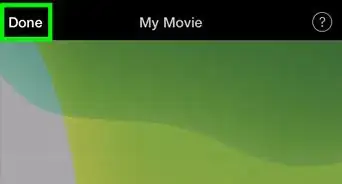
15Tap the blue Done button. This button is in the upper-right corner of your video. It will save all your edits, and export the video to Photos.Advertisement






About This Article

1. Open the Photos app.
2. Tap a video.
3. Tap the Edit icon.
4. Select iMovie.
5. Tap the scissor icon to trim.
6. Tap the circles icon to add a color filter.
7. Tap the "T" icon to add a title.
8. Tap the musical note icon to add a soundtrack.
9. Tap Done on the top-right to export.