This article was co-authored by Darlene Antonelli, MA. Darlene Antonelli is a Technology Writer and Editor for wikiHow. Darlene has experience teaching college courses, writing technology-related articles, and working hands-on in the technology field. She earned an MA in Writing from Rowan University in 2012 and wrote her thesis on online communities and the personalities curated in such communities.
This article has been viewed 1,210 times.
Alt text is text applied to graphics for audible screen readers to read aloud. Good alt text gives accurate, detailed descriptions of images and charts so that people with visual impairments can understand what's on the page. This wikiHow will teach you how to add and edit alt text in Word. [1]
Steps
Method 1
Method 1 of 3:Word 2019 and Word for Microsoft 365
-
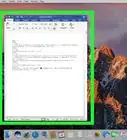
1Open your project in Word. You can either open the application from your Start Menu or Applications folder and then click File > Open, or you can right-click the Word file in your file manager and select Open with > Word.
- This method works for Word for Microsoft 365 on Mac and Windows as well as Word 2019 for both Mac and Windows.
-
2Right click the object. A menu will open at your cursor.
- If you're using a Mac, you'll press Control at the same time you click the mouse to perform a right-click.
-
3Click Edit Alt Text. It's near the bottom of the menu.
-
4Add the alt text. In the text field, you can write 1-2 sentences to describe the image and context to someone who can't see it.
- Close the window and save your document. The added alt text will be saved with the rest of your Word project.[2]


Method 2
Method 2 of 3:Word 2016
-
1Open your project in Word. You can either open the application from your Start Menu or Applications folder and then click File > Open, or you can right-click the Word file in your file manager and select Open with > Word.
- This method works for Word 2013 and 2016 for Windows and Mac.
-
2Right click the object. A menu will open at your cursor.
- If you're using a Mac, you'll press Control at the same time you click the mouse to perform a right-click.
-
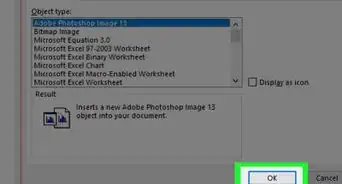
3Click Format Object and Alt text. The "Format Object" may change to reflect the object you're formatting. For example, if you clicked on a shape, this menu option will display "Format Shape" instead.
- Since this menu is so dynamic, the options listed and the display order will most likely change depending on the object you selected.
-
4Add the alt text. In the Description box, add the explanation of the shape, object, image, or chart.
- Add information in the Title box if you want.
- Close the window and save your document. The added alt text will be saved with the rest of your Word project.[3]


Method 3
Method 3 of 3:Editing Alt Text
-
1Open your project in Word. You can either open the application from your Start Menu or Applications folder and then click File > Open, or you can right-click the Word file in your file manager and select Open with > Word.
-
2Right-click the object with alt text you want to edit. Just like adding alt text, you'll need to right-click the object to see the menu.
-
3Click Edit Alt Text. If you're using an older version than 2019, you'll click Format Object > Alt text instead.
-
4Edit the text. You can edit the text that's in the text field as needed.
- Close the window and save your document. The added alt text will be saved with the rest of your Word project.[4]















References
- ↑ https://support.microsoft.com/en-us/office/add-alternative-text-to-a-shape-picture-chart-smartart-graphic-or-other-object-44989b2a-903c-4d9a-b742-6a75b451c669
- ↑ https://support.microsoft.com/en-us/office/add-alternative-text-to-a-shape-picture-chart-smartart-graphic-or-other-object-44989b2a-903c-4d9a-b742-6a75b451c669#PickTab=Windows
- ↑ https://support.microsoft.com/en-us/office/add-alternative-text-to-a-shape-picture-chart-smartart-graphic-or-other-object-44989b2a-903c-4d9a-b742-6a75b451c669#PickTab=Windows
- ↑ https://it.umn.edu/services-technologies/how-tos/microsoft-word-add-edit-alt-text
About This Article

1. Open your project in Word.
2. Right click the object.
3. Click Edit Alt Text.
4. Add the alt text.